Trials of a Network Admin

Fixing problems nobody else seems to have.

  • About

OWA 2013 Expired Password Requires Domain Name

Posted by James F. Prudente on April 15, 2014
Posted in: Exchange. Leave a comment


If you have a single domain, odds are you prefer that your users can log on to Outlook Web Access without having to enter the domain name, which many of them probably don’t even know anyway. For the actual OWA login page, this is simple; See this link for info on changing the default domain property.

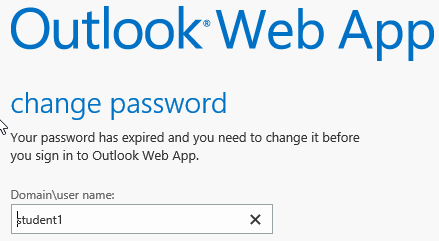
Unfortunately, the default domain setting does not apply to the form that allows you to change an expired password. Notice how the login screen only asks for “User name:” but the change password screen asks for “Domain\user name:” And sure enough trying to change a password without using the domain will simply not work. The fix for this is actually simple although it’s a bit of a hack; be careful.

On your Exchange server (presumably your CAS server; we’re in a single-server environment), navigate to {Exchange Install Path}\V15\FrontEnd\HttpProxy\owa\auth\15.0.847\scripts\premium and find fexppw.js. I’m not sure if the “15.0.847” directory will change with patches or service-packs; this is what ours is on Exchange 2013 SP1.

Open the file, and find the below lines:

// Fill in username, set focus to password
//
gbid(“username”).value = rg[3];

Change the last line to:

gbid(“username”).value = “domain\\” + rg[3];

Now the user name field will correctly populate the domain name and your users should no longer need to enter it in order to reset their password.

Exchange 2013 SP1 – ESEUTIL has Open Files

Posted by James F. Prudente on April 14, 2014
Posted in: Exchange. Leave a comment


With Exchange 2013, Microsoft made changes to how it approaches updates and patches. Essentially, every few months there are what would have previously been termed update roll-ups, which are now called cumulative updates (CU). Each CU however is a full build of Exchange 2013, rather than a collection of patches. The same holds true for the recently released Exchange 2013 SP1; this isn’t a service pack in the traditional sense, it’s once again a full build of Exchange. That doesn’t mean you can’t upgrade over your existing Exchange 2013 install, but this isn’t a patch you can push through WSUS.

Our SP1 upgrade started poorly. Almost immediately, during the prerequisite check, we received the following error:

Following that link resulted in a completely useless page indicating that Microsoft hadn’t yet added any info about that error message. Gee, thanks. Searching the web didn’t turn up anything relevant either, hence this post.

I used Sysinternals Process Monitor to try and determine what application(s) were using eseutil. It turned out our backup application was doing so, but even after stopping the backup and disabling the service, the files remained open. Looking further, I found Volume Shadow Copy (VSC) also using eseutil. I disabled that, along with my anti-virus for good measure, but the files stayed open. I ended up rebooting the server with my backup app and VSC disabled, and that allowed me to move forward.

The upgrade itself went fine and conveniently once the process starts no user interaction is required. You do need to manually reboot the server once the install is done, and I found Exchange took a bit longer than normal to get started after the reboot, but other than that things seem fine.

Setting Windows 8.1 All Apps View Sorting via GPO

Posted by James F. Prudente on March 28, 2014
Posted in: Windows 8.1. 3 Comments

As a K-12 school dealing with students as young as five who, over the course of a week might use a dozen computers in different locations, we work hard to present a consistent experience from PC to PC. One way we do this is by redirecting the start menu to a network share, so every PC has the same start menu. This has worked great as far back as Windows 2000, but of course Windows 8/8.1 brought major changes to the OS, replacing the start menu with the start screen and tiles. While we are running Win 7 on the desktop, the Windows tablets we are beginning to roll out are of course, on 8.1, and we’re likely to be dealing with both versions for some time.

When the policies that redirect the start menu are applied to an 8.1 system you end up with an interesting result. The start screen will show the shortcuts from the redirect, along with the ‘default’ Metro shortcuts – and that’s all. Even the “Desktop” tile will be missing. That’s at least an easy enough fix, as detailed here; download the desktop shortcut and put it into your redirected start menu. Note that this shortcut is by default a system file; it seems in order for it to properly display you need to remove the system attribute; “attrib -s desktop.lnk” from a command prompt.

Now, probably the biggest start screen improvement from 8 to 8.1 from an administrator’s perspective is the ability to control the start screen via group policy. You can create a reference start screen, export it via PowerShell, then import it into group policy and push it back out to multiple computers through a GPO. We will probably do this eventually but right now our priority was getting a functional start screen that was reasonably consistent with the Windows 7 machines.

We ended up setting the following through group policy:

  • User Configuration\Policies\Administrative Templates\Start Menu and Taskbar\List desktop apps first in the Apps view à Enabled
  • User Configuration\Policies\Administrative Templates\Start Menu and Taskbar\Show the Apps view automatically when the user goes to Start à Enabled

With these two settings in place, clicking Start brings up the “All Apps” view rather than the start screen tiles, and displays the desktop apps before any Metro apps. However, for that later setting to matter, you have to sort the “All Apps” view by Category.

This unfortunately is a setting that’s not natively exposed by Group Policy, but it is stored in the registry and thus can be controlled with a Group Policy Preference.

The registry key is HKCU\Software\Microsoft\Windows\CurrentVersion\ImmersiveShell\Grid\LauncherSortOption

Options are:

0 – Sort by Name
1 – Sort by Date
2 – Sort by Most Used
3 – Sort by Category

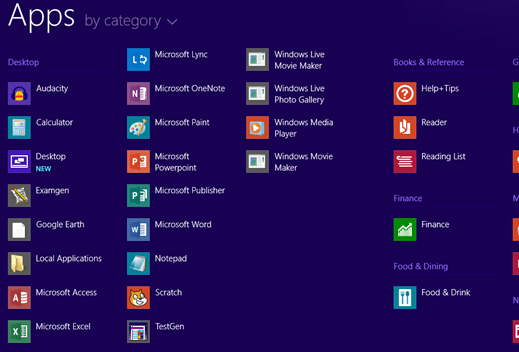
Between the earlier two GP settings and this registry entry (set to 3), we end up with the start button showing a list of all apps, with the shortcuts from our redirected start menu listed first. While this is still significantly different than a Win 7 desktop and its traditional start menu, I think this is the best solution for using a redirected start menu on Win 8.1. You can see below the similarities between the customized 8.1 app view and our redirected Win 7 start menu. The “Desktop” icon will show on the Win 7 start menu but doesn’t here because I hadn’t yet changed the shortcut’s system attribute as referenced earlier.


All in all these are an easy few tweaks to hopefully make 8.1 a little friendlier for those of you already redirecting the start menu.

Cisco Meraki AP Setup on a Trunk Port

Posted by James F. Prudente on March 24, 2014
Posted in: Cisco, Wireless. 2 Comments

We’re in the early stages of a WiFi deployment using Cisco Meraki MR34 access points. One of the things we’re noticing about the product is that while most tasks are pretty self-explanatory, if you need to do something that isn’t, the documentation leaves a bit to be desired. We ran into issues setting these up on trunk ports, and along the way found out some additional operational details that hopefully will be helpful to others.

Before I go any further I should point out that this post, like most of my blog, is based on my direct observations correlated with 3rd party information when possible. Working with the Meraki access points (AP) we noticed some inconsistent behavior which makes drawing conclusions about their operation much more difficult. The info I’m posting here is therefore my best attempt to explain the behavior we observed. As always if someone reading this has more concrete info or links to anything contradictory, please let me know and I will research and update accordingly.

NOTE: For clarity, when I refer to connectivity to the “Meraki cloud” I am speaking about the AP’s ability to access the Meraki cloud infrastructure in general. Conversely, when I refer to (your) “Meraki WiFi network” or “dashboard” this implies the AP has been imported into and configured specifically for your network. An AP that has unfettered access to the Internet should always be able to access the Meraki cloud, but you need to explicitly import the AP to your dashboard for it to receive a configuration. Also, by “production SSID” I mean those SSIDs you’ve explicitly created in the dashboard rather than the ones the APs broadcast before being configured. Moving on…

Our wireless design requires each access point to be connected to a trunk port (uplink) so we can separate traffic into different VLANs as desired. I don’t think this should be an unusual configuration but following the setup documentation Meraki supplies will make things much more difficult than they need to be. The problem is this: the documentation essentially assumes the AP will receive a DHCP address and will then connect to the Meraki cloud, at which point you can import the AP to your dashboard and use it (the dashboard) to change the AP’s IP address if needed. However the dashboard will not let you set an invalid IP address (i.e. one which would cause it to lose connectivity to the Meraki cloud), which in theory makes sense but consider the following sequence:

  • You connect the AP to an access switch port on a network segment with DHCP then
  • Import the AP into your Meraki WiFi network (dashboard) then
  • You want to change the IP configuration and move the AP over to a trunk port

The dashboard will not allow you to change the IP because the new desired IP (for the trunk port) is invalid on the access port to which you’re connected. In addition, this creates some sort of a conflict where the dashboard won’t allow you to change the IP but will nevertheless complain about an invalid IP configuration even though it hasn’t changed.

With this being the case, the only way to configure an AP with an IP address on a network segment that does not have DHCP is to connect to the AP’s local webserver and make the changes there. Fine. But to do this, you need to be able to associate to the AP; in our case this wasn’t possible once the AP had received it’s configuration from our dashboard and was broadcasting our production SSIDs, because associating to them requires back-end connectivity to RADIUS and/or other network functions that are not accessible unless the AP is already on a trunk port. Bit of a catch-22.

At this point we attempted to hard reset an AP but had no luck doing so; with trial and error we discovered a few interesting points which I’ll first list then explain in more detail as appropriate.

  • As noted earlier, once an AP has an IP configuration, you cannot change it via the dashboard to any configuration that would cause the AP to lose connectivity to the dashboard.
  • Before an AP has been imported to your dashboard, it will broadcast one or more “Meraki” SSIDs to which you can associate. Once you’ve done so, you can access the AP’s built-in web server at http://10.128.128.128 to configure the uplink properties. This is, as best I can tell, the only way to configure the AP to use an IP address on a network segment without DHCP.
  • Once the AP has been imported to your dashboard, it will cease broadcasting the “Meraki” SSIDs so any further access to the local web server will require being able to associate to the AP over your production SSIDs. This may not be possible if the AP has connectivity only to the Meraki cloud and dashboard but not your own infrastructure, as could be the case when an AP is setup on an access segment rather than a trunk port.
  • The APs seem to remember if they were part of a Meraki WiFi network the last time they could reach the Meraki cloud. In other words, once an AP is imported into your dashboard and configured, it will not broadcast the “Meraki” SSIDs even if it loses connectivity to the cloud. This makes sense because you want the AP to continue operating locally even without cloud connectivity.
  • If the AP was part of a WiFi network the last time it connected to the cloud, you do not seem to be able to hard reset the unit. The only way we could get a hard reset to work was to delete the AP from our dashboard, then allow the AP to connect to the Meraki cloud (so it could see it was no longer part of a WiFi network), then perform the hard reset. Again this makes sense since it prevents someone with only physical access to the device (but no dashboard credentials) from resetting the unit.

So what does all this mean?

If you want to configure an AP out of the box, just:

  • Connect the AP to your desired network segment WITHOUT DHCP, or just bring the AP up without network connectivity. (The latter will require a POE injector or power adapter)
  • Associate to any of the “Meraki” SSIDs that are broadcast by the AP
  • Visit http://10.128.128.128 to access the built-in web configuration
  • Click uplink, then enter the desired IP address info
  • While not strictly necessary, I would suggest rebooting the unit

Make certain you do not power the unit off until you have a solid green or blue light; if the light is flashing blue, an upgrade is in progress and a power-cycle will likely erase the configuration.

If you need to hard-reset the AP:

  • From your Meraki dashboard, delete the AP
  • Allow the AP to connect to the Meraki cloud
  • Hold the reset button down for 10 seconds (this may vary model to model)

You should now see the “Meraki” SSIDs broadcast again and can follow the procedure above to configure the AP as needed.

One other thing we found out…as of this writing, there is a bug in the released Meraki MR34 firmware which impacts the ability of the AP to broadcast a SSID using MAC authentication. There is a beta patch available by calling Meraki support which seems to resolve the problem.

Thanks for reading!

Scripting Changes to Java’s deployment.properties File

Posted by James F. Prudente on March 6, 2014
Posted in: Scripting. Tagged: java, scripting, vbscript. 1 Comment

Java…bane of network admins everywhere, and quite possibly the largest security risk ever unleased on the Internet. Yet as much as best-practices say just don’t install Java, the reality is many websites and applications require it, and in working with Java you may find the need to change certain settings. Unfortunately these settings are stored in a configuration file rather than in the Windows registry, so changes cannot be made through Group Policy. And just to add another layer of complexity the config file is per-user and stored in the user’s profile.

To deal with this I’ve developed a short vbScript that can make changes or additions to the Java config file, deployment.properties, which normally resides in c:\users\UserName\AppData\LocalLow\Sun\Java\Deployment.

The script is reasonably well commented, so I’m not going to spend much time on it here though there are a couple things to note.

Any settings you want to add/change need to be included in the lines below. These should be the only changes you need to make in the script to suit your needs, then run it as a login script so every user gets the desired settings.

dictParams.Add “property”, Array(“deployment.expiration.check.enabled”, “deployment.cache.enable” ) ‘ Add any additional parameters here
dictParams.Add “value”, Array(“false” , “true” ) ‘ Add the value for each parameter here

I’ve tested this on Windows 7 and Windows 8.1 though it should work on 2000 or newer.

As always, use this at your own risk. The script doesn’t do too much that could cause trouble and it creates a backup of the deployment.properties file in case something strange happens, but test things out nonetheless before using in production.

Update 3-24-14: I ran into a single instance where this script continued to run, generating a 42GB file before we determined the problem. It appears this was a random race condition between our A/V software and the script, but in an effort to prevent a reoccurrence, I’ve added a MAXLINES parameter, after which the script should quit regardless of anything else going on.

Get the script from here. (Updated 3-24-14)

Posts navigation

← Older Entries
Newer Entries →
  • Recent Posts

    • Silent Installs of Adobe Acrobat Fail Successfully via the Creative Cloud Installer
    • Nested Groups in Azure AD and Exchange 365
    • MDT/ADK Issues – Path Not Found
    • The Real-World Implications of PrintNightmare
    • Office 365 Folder Naming Conflict
  • Recent Comments

    Brian's avatarBrian on Managing Mail-Enabled Security…
    Sunny Nijjar's avatarSunny Nijjar on Silent Installs of Adobe Acrob…
    James F. Prudente's avatarJames F. Prudente on BGInfo for Windows 10
    Andrewloh's avatarAndrewloh on BGInfo for Windows 10
    James F. Prudente's avatarJames F. Prudente on Nested Groups in Azure AD and…
  • Archives

    • August 2023
    • May 2023
    • October 2022
    • August 2021
    • July 2021
    • December 2019
    • November 2018
    • September 2018
    • June 2018
    • November 2017
    • October 2017
    • March 2017
    • October 2016
    • September 2016
    • July 2016
    • June 2016
    • April 2016
    • February 2016
    • December 2015
    • September 2015
    • July 2015
    • April 2015
    • March 2015
    • February 2015
    • January 2015
    • November 2014
    • October 2014
    • September 2014
    • July 2014
    • June 2014
    • May 2014
    • April 2014
    • March 2014
    • February 2014
  • Categories

    • Active Directory
    • ADFS
    • ASA
    • C#
    • Chrome
    • Cisco
    • Deployment
    • Exchange
    • Group Policy
    • Office 365
    • Opinion
    • PaperCut
    • Permissions
    • PKI
    • PowerShell
    • Scripting
    • Uncategorized
    • vmware
    • Web Filtering
    • Windows 10
    • Windows 11
    • Windows 8.1
    • Windows Server
    • Wireless
  • Meta

    • Create account
    • Log in
    • Entries feed
    • Comments feed
    • WordPress.com
Blog at WordPress.com.
Trials of a Network Admin
Blog at WordPress.com.
  • Subscribe Subscribed
    • Trials of a Network Admin
    • Join 33 other subscribers
    • Already have a WordPress.com account? Log in now.
    • Trials of a Network Admin
    • Subscribe Subscribed
    • Sign up
    • Log in
    • Report this content
    • View site in Reader
    • Manage subscriptions
    • Collapse this bar
 

Loading Comments...