Trials of a Network Admin

Fixing problems nobody else seems to have.

  • About

Print Archiving via PaperCut

Posted by James F. Prudente on March 5, 2014
Posted in: PaperCut, Permissions. 19 Comments

This is likely one of those obscure posts that maybe three other people on the planet are interested in, but after the effort it took to get this working, I just had to write it up. It’s worth noting though that while this configuration is specific to an application we use, a good portion of the below has to do with troubleshooting permissions on files and services, which could impact any number of applications or configurations. Hopefully some of this info is useful to a wider audience. If nothing else it’s good documentation for my department’s records.

If you just want to get PaperCut print archiving working, you can jump straight to Making the Necessary Changes.

Background and Troubleshooting
We use PaperCut to monitor print usage. A while back they added a print archiving feature that allows users to review and retrieve copies of printed documents through the PaperCut interface. At the time I looked into the configuration and it seemed rather complicated – plus we had no specific reason to implement it – so I put it on the back burner. Fast forward to a few days ago and the time had come to get it working.

Like many organizations, we have a centralized print server cluster handling all of our networked printers, but we still have dozens of local printers. The way PaperCut works in this case is that each PC with an attached printer is a “secondary print server” that reports back to the PaperCut application server. And that’s where things get complicated.

In this configuration, PaperCut needs a network share to hold the print archive and the PaperCut service (“PCPrintProvider”) that gets installed on each PC needs the ability to copy the spool files to that share. For whatever printers are local to the server with the print archive share itself, this is easy. In our case, I added a SAN LUN to our print cluster, changed the print-provider.conf file to point the archive to the local drive letter for that LUN, restarted the PCPrintProvider service, and was done. All our networked printers were archiving in a matter of minutes. (I’m deliberately glossing over a few steps that are nicely detailed in the PaperCut documentation, and if you’re hoping to setup archiving and are already lost, don’t bother going any further. It gets worse.)

But here’s the rub when it comes to all those local printers…The PCPrintProvider service by default runs as “Local System,” an account which by design has no ability to access a network share. To resolve this, the credentials under which that service runs need to be changed to a domain account, to which we can grant permissions to the share. OK, that’s not so bad. But the PaperCut documentation makes passing reference to the real problem: “Create a new domain account with access to the [archive] share […] and full management rights of print spooler on the local machine.”
That was a new one for me; I’ve never run across anything that required changing permissions on the print spooler, and searching online didn’t turn up anything either. In retrospect I probably should have contacted PaperCut support, but the documentation gives the distinct impression they don’t want to provide too much info about making changes that could cause your system to become seriously FUBAR’d. Plus it never hurts to learn something when figuring out a problem like this.

Anyway, one thing at a time. Starting with the easy and obvious stuff, I:

  • Created a domain user as a PaperCut service account
  • Granted that user permissions to the print archive (UNC) share
  • Gave that user account the “Log on as a Service” right through Group Policy
  • Changed the PCPrintProvider service to log on as the domain user account
  • Copied the updated print-provider.conf file, reflecting the archive share

The PCPrintProvider service restarted without any problem, but not only did I not have archiving, I was no longer getting the basic reporting of print jobs to PaperCut. I wasn’t terribly surprised to be honest because I hadn’t yet done anything to address the need for “full management rights of [the] print spooler.” Time to look at that, but before I go any further I should point out that in the interest of time, and in light of not having documented every single troubleshooting step I took along the way, I am skipping over a lot of detail about my failed attempts to fix this. The important stuff is here though.

One of the first things I tried was to change the service account for the Print Spooler service (“spooler”) to my PaperCut service account. Once this was done the spooler would throw an Access Denied error and refuse to start. I then gave the service account full control of the spooler service (which can be done through group policy or via subinacl.exe) but the service would still not start, so it went back to its default setting of “Local System.”

Next, I launched Process Monitor to see if I could turn up any Access Denied messages. The one that immediately stood out was “write” access being denied on the PaperCut NG\providers\print\win directory; the exact path varies based on an x86 or x64 system and seemingly which version of PaperCut was/is originally installed. I gave the service account full control of this directory, at which point the print-provider.log file began to update.

The log file then identified a registry key that the application couldn’t access either: HKLM\System\CurrentControlSet\Control\Print. I changed those permissions and restarted the PCPrintProvider service. Still no job logging.

At least print-provider.log was pretty clear in showing what the error was:

Unable to open service control manager, when trying to get handle to service: Spooler – Access is denied. (Error: 5)

I temporarily gave the PaperCut service account admin privileges on the local PC, which did fix things, but I believe in “least user privilege” so adding a local administrator account domain-wide was not something I wanted to do. I removed the admin access and went back to troubleshooting, though I spent way too long trying to track this down and not getting anywhere.

The turning point was when I thought to enable failure auditing of well, everything, which can be done through secpol.msc. Having done this, I restarted the PCPrintProvider service and immediately had a few failures show up in the security log. Unfortunately I didn’t take any screenshots, but the gist of things is that access was being denied to the Service Control Manager itself, not the Print Spooler. (Recall I had earlier given the service account full control of the spooler, so I wouldn’t have expected issues there.)

Searching for info on the error shown led me to this link, which explains exactly how to identify these failures and fix them using sc.exe to edit the permissions on the service control manager. I don’t mean to gloss over this step, as it was THE problem step for us, but the link does a perfectly good job of walking you through the fix and there’s no reason for me to duplicate it here.

Once this was sorted out, job logging started working again and I was now back to working on print archiving. The PaperCut log file was helpful here again, and I ended up needing to make two more changes:

  • Granting the service account full control of the local printer(s)
  • Granting the service account access to C:\Windows\System32\Spool\Printers so it could access the spool files and copy them to the archive share

Once all that was done, print logging and archiving were both working properly. Finally.

Making the Necessary Changes
Based on my troubleshooting above, it appears the following steps all need to be completed on every PC running as a secondary PaperCut print server:

  1. Stop “PCPrintProvider” service
  2. Grant permissions to the PaperCut service account to “Log on as a Service”
  3. Change “Log on As” credentials for “PCPrintProvider” service to a domain user account with access to your print archive share
  4. Copy new print-provider.conf (which the correct archive path set via UNC) file to the appropriate directory
  5. Grant PaperCut service account full control on the following directories:
    1. C:\Program Files\PaperCut NG\providers\print\win (Program Files path may vary)
    2. C:\Windows\System32\Spool\Printers
  6. Grant PaperCut service account full control on registry key HKLM\System\CurrentControlSet\Control\Print
  7. Grant PaperCut service account full control on all local printers
  8. Grant PaperCut service account full control of the print spooler
  9. Change ACL on Service Control Manager
  10. Start “PCPrintProvider” service

Alternatively you can grant your PaperCut service account local admin status on all PCs; that will make things nice and easy if you’re less concerned about security.

Steps 1 through 6 and step 10 should be easy enough to figure out, so I’ll focus on steps 7, 8 and 9.

Step 7:    Grant PaperCut service account full control on all local printers
subinacl.exe can be used to do this on a per-printer basis with the following command: (change the parts in italics)

subinacl.exe /noverbose /nostatistic /printer “Printer Name” /grant=domain\useraccount=F

Step 8:    Grant PaperCut service account full control of the print spooler
Again, subinacl.exe:

        subinacl.exe /SERVICE Spooler /GRANT=domain\useraccount=F

Step 9:     Change ACL on Service Control Manager
This is the troublesome one as it requires a few steps itself. Rather than my going through it all, I recommend reviewing this link from networkadminkb.com. You’ll need to determine the SID for your PaperCut service account and may want to review some info on SDDL strings. Make sure when you retrieve the SDDL string for the Service Control Manager that you are working at an administrative command prompt; the output will vary if you are not.

Wrapping Up
It took me quite a while to get this working, and I hope this post helps prevent at least a few people from having to go through the same process. I think the PaperCut installation ought to take care of most of this by itself, as right now print archiving is way more complicated to setup than it should be. Since it’s not, and because we needed to do this on a large number of PCs, I had to script a solution. If you’re interested in the script let me know, and if there’s sufficient demand I’ll clean it up and post it.

Update 8-13-14: Here’s the script. Use at your own risk. It should be sufficiently commented so you can make the necessary changes for your environment.

Please leave any comments or questions you may have. Thanks!

Adding Roles and Features During Deployment

Posted by James F. Prudente on February 27, 2014
Posted in: Deployment. Tagged: .NET, deployment, MDT, specops, Windows 8. 5 Comments

More on our continuing saga to deploy Windows 8.1 via MDT…

I thought we were done, with a fully-functional MDT deployment that installed Windows 8.1 exactly the way we wanted. And in a sense, we were, until we started pushing a few applications. One of these applications failed during a silent install with a generic error, and when I manually attempted the install it quickly became obvious what the problem was…the app required the .NET 3.5 Framework.

Now, the .NET Framework is typically delivered as a redistributable runtime along with apps that require it, however on Windows 8 / 8.1 it has been moved to a “feature” that must be installed through “Programs and Features” in the control panel. If you interactively try to install an app that requires the runtime, Windows is smart enough to catch that and prompt you to add the feature. That may or may not work without additional intervention, depending on if your install has access to a full Windows source or can find what it needs from Windows Update or WSUS, but it certainly does not work during a silent install.

There’s a few ways of dealing with this, but I really wanted to add the feature as part of our deployment process. That way, we know it’s installed everywhere. I was pleased to find out MDT 2013 (and I believe 2012 as well) offers “Install Roles and Features” as a pre-canned task step. I added it within the “State Restore” section, just before Windows Update runs.

When you add this step, you can then choose the target OS and select the roles and features you want added.

Easy, right? It never is though, is it?

Once I added this step and re-tested the deployment, we started getting prompted to select roles and features during what should have been a silent deployment. This happened very early in the deployment process, not even where one would have expected based on its location in the task.

The fix for this was pretty straightforward. In our customsettings.ini file, I added one line to the [Default] section:

    SkipRoles=YES

Note that YES must be capitalized. Once this was done the prompt went away and the deployment was back to being silent.

Of course, that still didn’t fix things. Before I go any further I should point out we use SpecOps Deploy which acts as a wrapper around MDT, and it’s possible the error we ran into is a result of something the SpecOps people are doing. I will touch base with them and if they have any feedback I’ll update this post accordingly. And just to be clear, I’m a big fan of SpecOps Deploy; you can see a case-study they did on us here.

Anyway, I started getting a “Path Not Found” error from ZTIOSRoles.wsf, which is the script that gets called when you add the “Install Roles and Features” task step. Based on the BDD.LOG file that MDT generates it was clear ZTIOSRoles.wsf was generating this error within its GetSource function.

Function GetSource
   ' By default, assume any needed files (e.g. NetFx3) can be loaded from WU or WSUS.
   GetSource = ""
   ' If the user explicitly set WindowsSource, copy the files locally,
   ' pass the value along via the source switch, and limit access to
   ' the internet.
   If oEnvironment.Item("WindowsSource")  "" then
	oUtility.ValidateConnection oEnvironment.Item("WindowsSource")
	If not oFSO.FolderExists(oUtility.LocalRootPath & "\sources\" & oEnvironment.Item("Architecture")) then
	   oLogging.CreateEntry "Copying source files locally from " & oEnvironment.Item("WindowsSource"), LogTypeInfo
	   oUtility.VerifyPathExists oUtility.LocalRootPath & "\sources\" & oEnvironment.Item("Architecture")
	   oFSO.CopyFolder oEnvironment.Item("WindowsSource"), oUtility.LocalRootPath & "\sources\" & oEnvironment.Item("Architecture"), true
	End if
	GetSource = oUtility.LocalRootPath & "\sources\" & oEnvironment.Item("Architecture")
	' If the SourcePath value was set (typically in LTI via ZTIUtility.vbs),
	' copy the files locally, pass that path along via the source switch,
	' and limit access to the internet.
   ElseIf oEnvironment.Item("SourcePath")  "" then
      oUtility.ValidateConnection oEnvironment.Item("SourcePath")
      If not oFSO.FolderExists(oUtility.LocalRootPath & "\sources\" & oEnvironment.Item("Architecture")) then
	 If oFSO.FolderExists(oEnvironment.Item("SourcePath") & "\sources\sxs") then
	    oLogging.CreateEntry "Copying source files locally from " & oEnvironment.Item("SourcePath") & "\sources\sxs", LogTypeInfo
	    oUtility.VerifyPathExists oUtility.LocalRootPath & "\sources\" & oEnvironment.Item("Architecture")
	    oFSO.CopyFolder oEnvironment.Item("SourcePath") & "\sources\sxs", oUtility.LocalRootPath & "\sources\" & oEnvironment.Item("Architecture"), true				GetSource = oUtility.LocalRootPath & "\sources\" & oEnvironment.Item("Architecture")
	 Else
            oLogging.CreateEntry "SourcePath was set, but " & oEnvironment.Item("SourcePath") & "\sources\sxs does not exist, not using local source.", LogTypeInfo
	 End if
      End if
   End if
End Function

Sorry the code block looks horrible…I’m still learning how to handle code with WordPress.

After adding some debug logging of my own (not shown here) I established the error was being generated by the oFSO.CopyFolder line bolded above. That line attempts to copy the “sxs” folder that contains the .NET binaries from the deployment share to the local PC. Frustratingly, after more debugging it seemed both the source and destination path did exist, so I was at a loss as to why the error was being generated. I’ve run into similar problems before with this function in vbScript, and there doesn’t seem to be a good way of troubleshooting what’s actually happening within CopyFolder.

I ended up with a bit of a hack as a workaround. I replaced the entire ElseIf block with the below:

ElseIf oEnvironment.Item("SourcePath") = "" then
   oUtility.ValidateConnection oEnvironment.Item("SourcePath")
   GetSource = oEnvironment.Item("SourcePath") & "\sources\sxs"
End if

Basically, instead of trying to copy the binaries locally, we’re just telling the script to use the networked copy. I have no idea why this isn’t done by default, unless there’s some side effect that I’m not thinking of. For now at least, this is working fine.

Hope this helps someone!

Connected Standby and OS Deployment

Posted by James F. Prudente on February 20, 2014
Posted in: Deployment. Tagged: deployment, MDT, specops, Windows 8. 6 Comments

I make my living primarily by supporting Microsoft products, and I genuinely think their technology is quite good. But every now and then they make decisions so monumentally stupid that they need to be called out for them; “Connected Standby” is one of those instances.

Connected Standby is a new power mode in Windows 8 or 8.1 designed for tablets which essentially allows them to enter sleep mode but keep just enough functionality active so they can receive e-mails, keep their DHCP leases, etc. In other words, you’re in standby but still “connected.” This is of course to help battery life and create a more smartphone-like experience. Fine, I’ve got no arguments there.

The problem is what causes the system to go into this mode, or more accurately what prevents it from doing so. Apparently there’s an entire sub-system that manages this, the Desktop Activity Moderator. Whatever is happening under the hood though, the only thing that seems to keep the system from sleeping is user activity: mouse, touch, or keyboard input. In theory that’s fine, but try doing an OS deployment to a system that goes to sleep after ten minutes and see how well that works. Just to be clear, a “connected standby”-capable tablet will go to sleep during the OS deployment process while using Microsoft Deployment Toolkit (MDT) 2013.

Compounding this problem there’s no obvious way to disable connected standby. It’s supposed to be transparent to applications and thus there shouldn’t be a need to turn it off. Yeah, anyway. Fortunately, after a lot of research and a lot of trial and error, I was able to disable this “feature” while imaging a system.

A “connected standby”-capable device should by default have only a “balanced” power scheme available. We need to make changes to this scheme during the imaging process, taking note of the fact that the setting which controls connected standby is actually the display timeout, not the sleep setting. We can do this by calling a batch file during the deployment task sequence, which itself will use powercfg.exe to change the power settings.

First, save the below to the Scripts folder of your Deployment Share(s) as CHANGEPOWERSETTINGS.BAT.

REM Set the display timeout

powercfg /setacvalueindex 381b4222-f694-41f0-9685-ff5bb260df2e 7516b95f-f776-4464-8c53-06167f40cc99 3c0bc021-c8a8-4e07-a973-6b14cbcb2b7e 0

REM Set the sleep timeout

powercfg /setacvalueindex 381b4222-f694-41f0-9685-ff5bb260df2e 238c9fa8-0aad-41ed-83f4-97be242c8f20 29f6c1db-86da-48c5-9fdb-f2b67b1f44da 0

REM Activate this power scheme

powercfg /s 381b4222-f694-41f0-9685-ff5bb260df2e

By using /setacvalueindex we are changing the timeouts when the device is on AC (line) power for the specific settings referenced by the GUIDs. Setting the timeout to “0” disables that particular power setting. Note that despite the “balanced” scheme already being active (by virtue of it being the only scheme), we still need to “activate” it for the new settings to take effect. Also, since we’re making changes to the AC values only, this should have no effect on a device running on battery power.

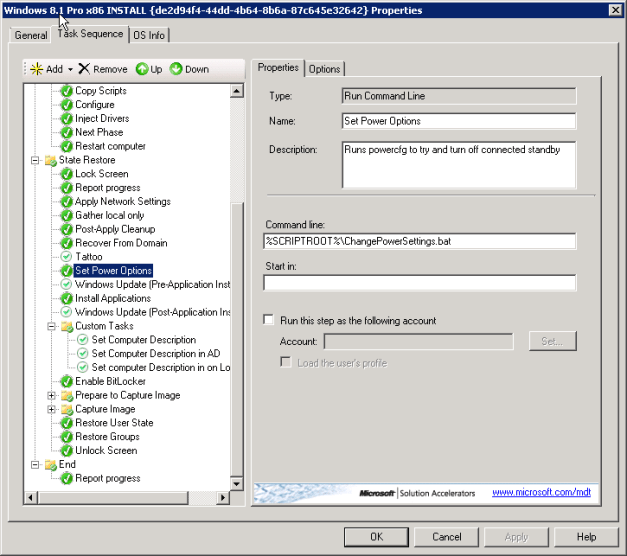
Next we need to add a task to our deployment task sequence in Deployment Workbench. Here, I’ve added “Set Power Options,” which is a “Run Command Line” task that simply calls the batch file we created above. I chose to put this between “Tattoo” and “Windows Update (Pre-Application Install)” because it was during the initial Windows Update task that the systems were going to sleep. On the options tab, you can choose if the task should continue on error; at this point I am not doing so since the task itself will fail when the system goes to sleep anyway. Once we start testing 8.1 on the desktop or devices that do not use connected standby, I may need to revisit this option.

Depending on your preferences once the deployment is complete, you may want to create another task near the end of the sequence to re-enable connected standby on AC. We use 3rd party power management software however, so I’m not too concerned about how this is set once the system is up and running.
Hopefully this helps some of you out. And Microsoft, please, when you add new features like this – give us administrators an easier way to decide how we want the device to work. Stopping a system from going to sleep should not require digging around for obscure and illogical settings.

Troubleshooting PXE Booting

Posted by James F. Prudente on February 18, 2014
Posted in: Deployment. Tagged: DHCP, PXE, specops. 12 Comments

PXE is a great example of a topic that turns up a ton of search results but very little helpful content. Search for “PXE configuration” or “PXE troubleshooting” and you’ll find the majority of posts focus on the same thing, specifically a few DHCP options that “must” be set in order for PXE to work. Admittedly that’s how we had PXE setup until recently, but an upgrade to our imaging software forced us to revisit this configuration, make changes, and learn quite a bit along the way.

We use Specops Deploy to image PCs and recently upgraded to their latest version to support the Windows 8.1 tablets we’re beginning to test. Deploy builds on standard Microsoft deployment tools, so pretty much everything in this post should apply regardless of the imaging solution you’re using. Besides, PXE is primarily BIOS-dependent as we’ll see later.

First a little background…

If enabled in the BIOS, PXE is part of the PC’s startup sequence. It uses the DHCP process by which devices are dynamically assigned IP addresses to obtain information about booting from a network location.

The basic DHCP process takes four steps:

  1. The client sends out a DHCP Discover broadcast.
  2. The DHCP server (or servers) respond with a DHCP Offer, which includes the IP address the DHCP server will provide the client.
  3. The client sends a DHCP Request broadcast, indicating the IP address it has selected.
  4. The DHCP server selected sends a DHCP ACK to the client, acknowledging the client has accepted the IP address.

Important Note: As mentioned, DHCP relies on broadcasts, which by definition do not traverse VLANs or subnets. If your DHCP server(s) is on a different VLAN from your clients, your router will need to be configured as a DHCP relay; on Cisco equipment this is done through the ip helper-address command. This will come into play for PXE as well.

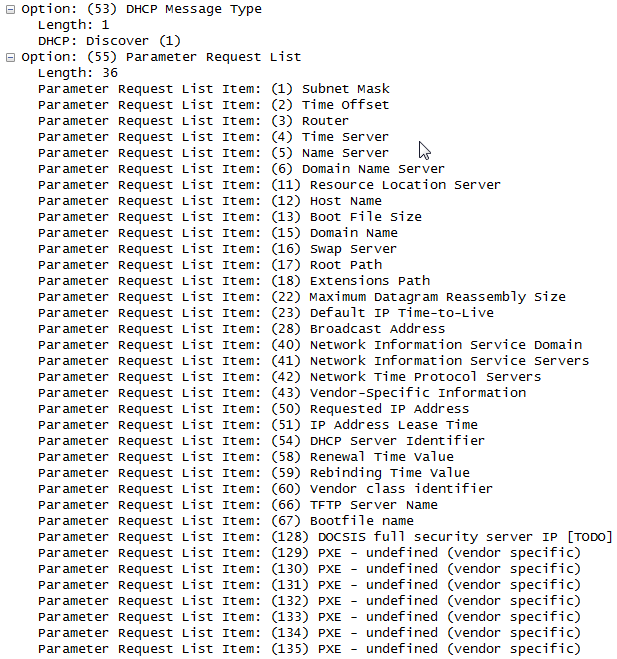
Anyway, that’s the basic DHCP traffic flow, but it’s important to recognize that the initial DHCP Discover includes requests for quite a few parameters, as shown below via a Wireshark capture. Note options 60, 66, and 67, Vendor Class Identifier, TFTP server name and Bootfile Name.

The typical “recommended” configuration for PXE requires explicitly setting these three options (again: 60, 66, and 67) so that your clients receive this information directly from your DHCP server. And sure enough, if they are set a certain way, PXE will work in some (perhaps most) cases. But this is not the proper way to setup PXE, and doing so is not supported by Microsoft as per KB #259670. There are a few reasons this is not the right way to do things; first of all, by explicitly setting the PXE server in this fashion, you eliminate the option of having redundant PXE servers. Additionally, in some cases if your PXE server is down, your client PCs may hang up – either briefly or indefinitely – while looking for it. The biggest problem though – and the one that for us started this whole process – is that by specifying a boot file name in option 67, you eliminate your PXE server’s ability to dynamically determine which boot file it serves to a client.

The first indication we had that anything was wrong with our PXE setup was that the new tablets we were testing (Dell Venue 11 5130s, which are Atom-based devices) would not PXE boot. Turns out they need a UEFI boot file, which is different than everything else on our network. Explicitly setting option 67 caused the tablets to look for the standard boot file we’d been using, and since that was not a valid boot file for the tablets, they could not find a boot device through PXE. My first attempted fix was just to remove option 67, but evidently 60, 66, and 67 all need to be set if you’re going to use the explicit method.

The good news is that fixing all this is simple – sorta. You effectively just need to do two things:

  • Remove options 60, 66, and 67 from your DHCP server(s). You may find reference elsewhere to removing option 43 (Vendor-Specific Information) as well but we have this option set for other purposes and this has not caused any issues.
  • If your PXE server is on a different subnet/VLAN from your clients, configure your router to forward broadcasts to it, exactly as you do for your DHCP servers.

Two things will then happen when a client sends out a DHCP Discover broadcast:

  • Your DHCP server(s) will respond with IP address(es) and related info.
  • Your PXE server will respond with option 60, identifying itself as a boot server.

Note that second bullet-point…the PXE server should be replying with option 60, but the DHCP servers should not.

Once we realized we shouldn’t be setting these options explicitly and configured the ip helper-addresses, the Venue tablets sure enough would successfully PXE boot, getting the proper UEFI boot file in the process. But it’s never that simple, right?

Making these changes broke PXE for all (or as it turns out, almost all) of our desktops and laptops, which had been working fine for years. We have five different models of Dell OptiPlex desktops, plus a few models of Latitude laptops….a pretty good mix of their corporate product line for the last six years.

Most of the desktops would error out during the PXE part of the boot process with a “PXE-E55 ProxyDHCP service did not respond on port 4011″ error. Some of the laptops were worse, completely hanging during PXE without getting an IP address. Just to be clear, these PCs were not actually trying to boot from the network; the errors were happening during the part of the system’s start-up where it first tries to connect to the boot server and determine if it should be booting from the network.

Research into the PXE-E55 error always came back to the same supposed cause: having option 60 set on your DHCP server (without options 66 and 67) when your PXE server was on a separate server. Essentially in this configuration, your client would see the DHCP server respond with option 60 and because of that try to connect to it on port 4011 to network boot; since your DHCP server was not configured for PXE, port 4011 would obviously not respond.

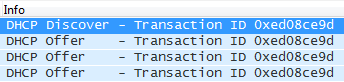
I double and triple checked our DHCP servers and confirmed they should not be sending out option 60, so I decided to do some packet captures during the boot process to make sure they weren’t. The results were interesting; on a machine that generated the PXE-E55 error, I could see the DHCP Discover request go out and likewise see the DHCP servers and PXE server all send their DHCP Offer in response. The client would display an IP address (and respond to pings on this IP) but no further DHCP packets were sent out. The client never sent a DHCP Request packet and the PXE-E55 error occurred immediately after the client acquired an IP.

My instinct at this point was that something was wrong on the client side; after all the next packet that should have been sent was from the client. But with PXE having worked for years and all of our recent changes having been made on the server and network side, logic seemingly dictated the client couldn’t be the problem.

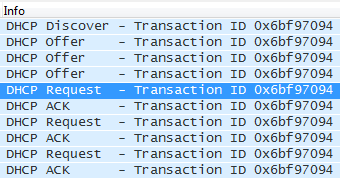
The breakthrough was one of my techs identifying a machine that was properly getting through the PXE process without an error. I packet captured that system and saw the four-step DHCP exchange as expected.

So now I had two test PCs on the same VLAN, connected to the same switch, and connecting to the same set of servers; one worked, one didn’t.

While they were different model PCs, they both used the same Intel NIC. However the PXE firmware on the NIC was slightly newer on the working system. I downloaded the latest Dell BIOS for the non-working machine, installed it, and low and behold the system started PXE booting as expected.

There’s clearly a bug in the earlier revisions of the Intel PXE firmware. Keep in mind that no traffic at all was being sent from the NIC of the non-working system after the DHCP Offers were received. It seems the NIC saw option 60 set without 66 and 67, and immediately generated the PXE-E55 error without even trying to connect to a PXE server. Interestingly I looked through all the BIOS revision notes I could find for a Dell OptiPlex GX745 – which was one of our affected systems – and cannot find any mention of PXE improvements or fixes. But the version number of the PXE firmware did increment and the behavior changed, so it would seem the release notes are incomplete.

Thankfully Dell provides a way to silently push a BIOS install, so we’re now updating the BIOS on all of our systems, and PXE is back to working as expected.

Your comments or questions are appreciated. Thanks for reading!

Jack of All Trades?

Posted by James F. Prudente on February 14, 2014
Posted in: Opinion. 2 Comments

Welcome to my blog! Yeah I know, real original opening; the evil geniuses at Google only find that exact phrase 111 million times. Oddly enough, Bing returns just 8.1 million hits, perhaps giving some validity to their argument that they filter out a lot of junk. Not to say that nearly 103 million of the other blogs out there are junk…it’s probably closer to the full 111 million. After all, how many of us have something truly interesting to say? Sadly, not too many. Of course that doesn’t stop quite a lot of us from trying, and I’m no different in that respect.

That said, I have no delusions of grandeur. If this blog takes off, great. If not, I won’t consider my life any less fulfilling. But if having my ego stroked isn’t my goal, what is? That brings me to the title of this post.

We’ve all heard the expression “Jack of All Trades, Master of None.” While strictly speaking there’s nothing derogatory about the phrase, the reality is it typically has a negative connotation when used, implying that the “jack” and/or his skills are quite superficial. And unfortunately, many of us Network Administrators find ourselves unfairly painted with this brush – even by other “specialists” in IT, as those who don’t understand what we do often make the assumption that because we do so much, our depth of knowledge must be lacking. After all, the implication is you can’t “master” more than a couple skills, can you? Well I reject that argument.

Sure, some companies are so large they need and can afford application-level admins: the Exchange admin, SQL DBA, Cisco engineer, etc. Other environments are so small that they simply don’t require many of the more advanced technologies that are out there. But I believe many of us fall somewhere in the middle; our networks are large enough that we’re using most of the same products as the Fortune 500, yet small enough that application-level admins are impractical and unaffordable. We often manage complex environments with skeleton staffs, and yet are still required to deliver high levels of reliability, security, and functionality. Somebody has to keep all these systems running, and the need to manage multiple systems doesn’t reduce the skill level needed to properly manage any individual one.

While this is nothing new, the increasing complexity of mid-sized networks and the variety of technologies involved means that the problems that arise are more often than not the result of interactions between disparate systems rather than issues within a given product or implementation. As a result, whomever is tasked with troubleshooting these problems needs to know quite a lot about all the systems involved. A modern-day Network Administrator must be a “Jack of All Trades, Master of Many” if he is to succeed.

It’s with this in mind and given my experiences the past few months that have led me to start this blog. Increasingly I find myself in uncharted territory when troubleshooting, rarely able to find start to finish solutions for whatever issue I’m working on. Sure, individual bits of a solution may exist on various blogs, in TechNet articles, in other support documentation, etc., but ultimately I’ve had to piece together quite a lot from various sources. So in an attempt to help out the “next” admin that may face the same or similar problem, I intend to try and document the solutions I find in a straight-forward, concise, and most importantly complete manner.

Just to be clear, I have no desire to post the same info here that you can find a hundred other places. My criteria for posting will essentially be “Is this new info that can’t be found elsewhere in its entirety?” That should guarantee new posts appear with a frequency somewhere between daily and never. We’ll just have to see how it goes.

Posts navigation

Newer Entries →
  • Recent Posts

    • Silent Installs of Adobe Acrobat Fail Successfully via the Creative Cloud Installer
    • Nested Groups in Azure AD and Exchange 365
    • MDT/ADK Issues – Path Not Found
    • The Real-World Implications of PrintNightmare
    • Office 365 Folder Naming Conflict
  • Recent Comments

    Brian's avatarBrian on Managing Mail-Enabled Security…
    Sunny Nijjar's avatarSunny Nijjar on Silent Installs of Adobe Acrob…
    James F. Prudente's avatarJames F. Prudente on BGInfo for Windows 10
    Andrewloh's avatarAndrewloh on BGInfo for Windows 10
    James F. Prudente's avatarJames F. Prudente on Nested Groups in Azure AD and…
  • Archives

    • August 2023
    • May 2023
    • October 2022
    • August 2021
    • July 2021
    • December 2019
    • November 2018
    • September 2018
    • June 2018
    • November 2017
    • October 2017
    • March 2017
    • October 2016
    • September 2016
    • July 2016
    • June 2016
    • April 2016
    • February 2016
    • December 2015
    • September 2015
    • July 2015
    • April 2015
    • March 2015
    • February 2015
    • January 2015
    • November 2014
    • October 2014
    • September 2014
    • July 2014
    • June 2014
    • May 2014
    • April 2014
    • March 2014
    • February 2014
  • Categories

    • Active Directory
    • ADFS
    • ASA
    • C#
    • Chrome
    • Cisco
    • Deployment
    • Exchange
    • Group Policy
    • Office 365
    • Opinion
    • PaperCut
    • Permissions
    • PKI
    • PowerShell
    • Scripting
    • Uncategorized
    • vmware
    • Web Filtering
    • Windows 10
    • Windows 11
    • Windows 8.1
    • Windows Server
    • Wireless
  • Meta

    • Create account
    • Log in
    • Entries feed
    • Comments feed
    • WordPress.com
Blog at WordPress.com.
  • Subscribe Subscribed
    • Trials of a Network Admin
    • Join 33 other subscribers
    • Already have a WordPress.com account? Log in now.
    • Trials of a Network Admin
    • Subscribe Subscribed
    • Sign up
    • Log in
    • Report this content
    • View site in Reader
    • Manage subscriptions
    • Collapse this bar