Trials of a Network Admin

Fixing problems nobody else seems to have.

  • About

IIS Application Pool Will Not Start – App Log Error 2307

Posted by James F. Prudente on June 13, 2018
Posted in: Windows Server. 1 Comment

After applying patches to a 2012 R2 server, I found one of our IIS websites was not working. While IIS was itself running, the DefaultAppPool was stopped. Attempts to start the app pool were unsuccessful; the pool would stop almost immediately, and error 2307 from “IIS-W3SVC-WP” was logged in the Application Log.

The error message itself contained the following information:

The worker process for application pool 'DefaultAppPool' encountered an error 'Cannot read configuration file' trying to read configuration data from file '\\?\<EMPTY>', line number '0'. The data field contains the error code.

Not the most helpful error message since it doesn’t specific the file that cannot be read. Some research online turned up references to specific IIS config files (web.config, etc.) having incorrect user permissions, but I looked into that and everything seemed correct. I used Sysinternals Process Monitor to see if I could determine the file in question, with no luck.

Eventually I stumbled on a post (which I unfortunately lost track of), which referenced a Microsoft KB article. The article pertains to Windows 10 and Server 2016, the 1709 Fall Creators Update, and a totally different event ID from a totally different service. That said, the resolution shown fixed the error I was having.

The actual fix is quick:

net stop WAS /y
rmdir /s /q C:\inetpub\temp\appPools
net start W3SVC

Evidently the patches I applied caused the same issue (broken symbolic links) as the Win 10 1709 upgrade.

Inaccessible Network Shares on Windows 10 1709

Posted by James F. Prudente on November 15, 2017
Posted in: Permissions, Windows 10, Windows Server. 13 Comments

After upgrading a number of systems to the Fall Creators edition of Windows 10, version 1709, we began receiving reports of certain users being unable to access a specific set of shared folders. These were folders hosted on a 2012R2 file server, and the error received indicated the share was missing, rather than there being a permissions issue.

Searching for this type of error on the Fall Creators edition turns up two common results:

  • SMBv1 has been disabled and/or removed from Win 10 1709
  • Guest access in SMB2 disabled by default in Win 10 1709

We were pretty certain SMBv1 was not in use but ran Wireshark to sniff the SMB traffic and verify SMB2 was being used.

Likewise, we knew guest account access was already disabled, and the Microsoft KB article references log entries that would be present if this were causing a problem. There were no relevant log entries, so we crossed this off the list of possible causes.

Interestingly, not all shares were an issue; even other ones on the same server worked fine. That said, this share had been used for years without problems, with multiple versions of Windows, including three previous Win 10 builds.

I started reviewing the permissions on the share, just to see what might be different from other shares that were working, and quickly found a discrepancy.

The share in question was the parent folder for many sub-folders. The sub-folders have different permissions for different groups. We provide a shortcut directly to the parent folder and have access-based enumeration enabled so that users only see the folders they have access to. Nothing all that unusual here.

The parent folder had “Authenticated Users” being granted “Traverse Folder / Execute File” on the folder itself. (“This Folder Only”)

Certain user groups however had “Read” permissions on the parent folder. Some quick testing showed that the users with “Read” permissions could access the share, while those with “Traverse Folder” could not.

The entire purpose of “Traverse Folder” is to “[a]llow..moving through a restricted folder to reach files and folders beneath the restricted folder in the folder hierarchy.” Having this permission should be perfectly sufficient for what we were doing, and it has been for years, up until the Fall Creators version of Win 10.

Even stranger though is that “bypass traverse checking,” which is granted to everyone by default (and enabled in our domain) is supposed to entirely negate the need for the “Traverse Folder” right in the first place.

Something obviously changed in Fall Creators that has broken traverse checking; my guess is with all the file system work that Microsoft acknowledges they put into Fall Creators, they either inadvertently broke this or deliberately changed the behavior without communicating it to us. Although if this were a deliberate change it completely eliminates the value of traverse bypass in the first place.

The fix here was easy; I gave “Read” permissions to “Authenticated Users” for the parent folder only. This had no effect on any of the sub folders or users access to them, but it resolved the path not found error.

Oh well…back to beta testing the latest GA build of Win 10…

WSUS Error 0x80092026 – File Failed Post-Processing

Posted by James F. Prudente on October 16, 2017
Posted in: Windows 10. Leave a comment

As is typically the case with my sporadic blog posts, we recently ran into a situation where, as a colleague likes to put it, we ended up far down the rabbit hole. There are a few lessons to be learned here so I’m going to explain a bit about the troubleshooting process, not just how we eventually fixed the issue.

The initial complaint as reported was that one set of laptops was not working properly, but only during the first class period, and only in one classroom. Now, it’s not uncommon for mobile devices to take a little while to wake up, but in this case the machines were turning on an hour before class started, and again, we were told the problem was very limited in scope.

We were able to duplicate the problem, but again, only during the one period, and even stranger, only when the class was in the room. We use Meraki access points, and based on this particular AP not seeing its mesh neighbors all that well, we initially thought we were dealing with some localized RF interference. After extensive troubleshooting of the RF environment we could not find any explanation for the apparent interference. The AP was seemingly overloaded during this period of time, but there was no obvious cause.

One thing that did stand out was certain wireless clients were transferring an abnormal amount of data. We noted this with the intent to revisit it later, but because we had no reports of issues from other locations, we concluded this was unrelated to our current situation.

That was a mistake. We assumed that because there were no other problems reported, that there were no other problems. As it turns out, nobody else was using laptops at this time of day. The lesson here is to check your assumptions.

Once we realized that we could not draw any conclusions from the location of the problem, we expanded our investigation and revisited the previously mentioned excessively large amounts of data being downloaded. The Meraki APs do an excellent job of reporting certain info, and it quickly became obvious the data was coming from our WSUS patch server.

We had recently rebuilt WSUS, and with 2012 R2 there are (were) some important out-of-band patches that can result in failed downloads. We reviewed these and confirmed that on a fully-patched 2012 R2 install, these needed updates are now included in the normal security and critical updates that Microsoft pushes out. (Evidently you still must add the .esd mime type to IIS, but that’s unrelated to this post.)

We next turned to one of the laptops that was experiencing a problem. On Windows 10, getting a human-readable update log requires running the PowerShell command Get-WindowsUpdateLog; this creates the old-style WindowsUpdate.log you may be used to from earlier Windows versions.

Searching for errors, we came across the following:

Misc Validating signature for <file guid> with dwProvFlags 0x00000080:
Misc Error: 0x80092026 when verifying trust for <file guid>
DownloadManager File failed postprocessing, error = 80092026
DownloadManager Failed file: URL = <WSUSServer><File>, Local path = <local path>
DownloadManager Error 0x80092026 occurred while downloading update; notifying dependent calls. 

I should add that many of the affected laptops were not consistently reporting to the new WSUS server, we were not certain if this was related but it certainly seemed suspicious.

A number of online searches confirmed that this error had something to do with a certificate check failing for a particular update. Since our content filter does SSL decryption, we double-checked that we were not decrypting any traffic to Microsoft’s CRL or patch servers: we were not. Of course, if something were being blocked by the content filter we would expect every client to be impacted, but most of our PCs were working fine.

We found different files failing post-processing on different computers, so this did not seem to be related to a specific update. Was what more interesting is that despite only one downloaded update failing, WSUS (or BITS) seemingly discarded the entire batch of downloads, so the next time Windows Update started to run, it re-downloaded everything.

After further troubleshooting, I stumbled on this thread on Microsoft TechNet. User “lforbes” posted the following:

I found the offending key for those that are interested.
HKEY_USERS\S-1-5-18\Software\Microsoft\Windows\CurrentVersion\WinTrust\Trust Providers\Software Publishing
State SHOULD be 146432 or 0x00023c00
If it switches to 408576 or 0x00063c00 [t]hen it will cause these Crypto Errors 

Checking the registry on affected computers confirmed that the key in question was set to 0x00063c00. After changing it back to 0x0023c00, the trust provider errors stopped. I have no idea how he found that key, and what’s amazing is that this TechNet post seems to be the only reference to this error and this registry key out there.

I didn’t want to just make the change without understanding what it meant, so researching further lead to this post which clarifies that the “State” key is a bitwise flag for various settings of “Microsoft Trust verification services, which provide a common API for determining whether a specific subject can be trusted.” After a bit of hex to binary conversion and a comparison between the two sets of flags, I determined that the difference was the incorrect setting had enabled the flag to only “allow…items in personal trust database.” Seemingly this flag was preventing a system-level certificate from being used to validate a Microsoft signature. No clue why.

But of course things didn’t stop there.

Whether it was related to the original certificate error or not, many of the same PCs that had this error were also not reporting to WSUS. This at least I already had a partial fix for. Years ago I had put together a basic batch file that reset the SusClientId, deleted the SoftwareDistribution folder, and basically forced a full reset of the WSUS client. (I’m not taking credit for figuring this all out, but I have no idea where I first saw the info.)

The process involves running the following as a batch file on the affected PC:

net stop wuauserv

reg delete HKLM\SOFTWARE\Microsoft\Windows\CurrentVersion\WindowsUpdate /v AccountDomainSid /f

reg delete HKLM\SOFTWARE\Microsoft\Windows\CurrentVersion\WindowsUpdate /v PingID /f

reg delete HKLM\SOFTWARE\Microsoft\Windows\CurrentVersion\WindowsUpdate /v SusClientId /f

reg delete HKLM\SOFTWARE\Microsoft\Windows\CurrentVersion\WindowsUpdate /v SusClientIdValidation /f

del c:\windows\softwaredistribution /S /F /Q

net start wuauserv

wuauclt /resetauthorization /detectnow

This stops the Automatic Update service, clears out the registry keys that identity the system to WSUS, clears out the patch download cache, restarts the Automatic Update service, and then re-registers the system to WSUS. There’s one little problem. The “/detectnow” switch was apparently removed in the Win 10 version of wuauclt.exe, leaving no simple way to force a machine to scan WSUS for updates.

There are a couple of ways to get around this via VBScript or languages that directly call the Windows Update API. In our case however we already were licensed for WUInstall, which has this functionality built-in. We added an additional command at the end of the batch file to force WUInstall to scan for updates, and at this point, everything seems to be working properly.

Thanks for reading, and “lforbes,” if you’re out there, thank you for posting your fix.
VSS Snapshots Fail on Server 2008 or 2008 R2

Posted by James F. Prudente on March 8, 2017
Posted in: Exchange, Windows Server. Leave a comment

Recently our Exchange 2013 server – running on Windows Server 2008 (not R2) – started having backup failures. We use FalconStor DiskSafe for backup, which, like most (all?) Exchange-aware backup application uses VSS to snap the server.

During the investigation with FalconStor support, we discovered VSS was timing out during the verification of the snapshot, and running “vssadmin list writers” showed a number of the VSS writers in a failed state. No updates had recently been applied to the server, nor had any configuration changes been made recently, so there was no obvious potential cause of the problem.

FalconStor support was able to point us to this link at IBM. While not an exact description of our problem, the article linked to a Microsoft utility, DevNodeClean. The description for that utility is:

“On a computer that is running Windows Server 2003 or a later version, a storage device that is connected by using a fiber channel or by using the iSCSI protocol may be connected for only a short time. When a storage device is connected, Windows creates registry information for the device. Over time, the registry may contain many entries for devices that will never be used again. This utility can be used to remove this information from the registry.”

Interesting. Searching a bit more I came across a 3rd party complied version of DevNodeClean, which has more information about the problem it resolves.

I can’t find the link now, but I also came across a page that suggested reviewing the size of the registry itself. The actual registry files are located at c:\windows\system32\config. The SYSTEM file, which represents HKLM\SYSTEM, was in this case over 1.5GB! Checking a few other servers of similar age showed SYSTEM files of 50MB or less in most cases.

By now, I was pretty confident this was our issue. I ran DevNodeClean (the Microsoft provided one), which took – no joke – six days to complete. As it continued to delete unused devices from the registry, our backups began running again intermittently. After about five days of running the utility, all backups began working properly.

It seems what happens is that any backup product that calls VSS – FalconStor, Veeam, Microsoft DPM, etc. – causes a registry entry to be created for every single VSS snapshop. I believe the same happens when using Hyper-V snapshots. These registry entries are not cleaned-up, and over time, they bloat the registry to the point where it can essentially break VSS. In our case, we were snapping two LUNs every hour, so over the course of a few years of the server’s life, there were thousands of orphaned registry entries.

There is supposedly a hotfix for 2008 R2, but it’s not clear if that fixes the problem, and in any event it’s not available for 2008.

It seems the best way to deal with this is to run DevNodeClean as a scheduled task on a regular basis.

Unfortunately, the registry cannot be compacted online, so we will need to schedule a maintenance window to actually shrink the bloat.

Google Chrome Managed Bookmarks

Posted by James F. Prudente on October 14, 2016
Posted in: Chrome. Tagged: Chrome, favorites, Group Policy. 14 Comments

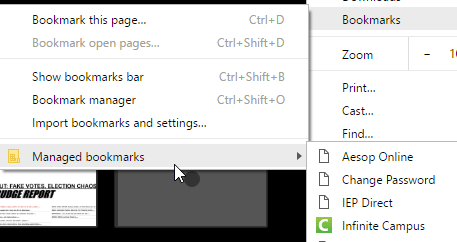
The Enterprise (MSI) version of Google Chrome includes a comprehensive Group Policy template, allowing many settings to be centrally controlled. One of these settings is “Managed Bookmarks,” which allows the administrator to push out a fixed set of bookmarks to all users.

As shown here, there are three methods to create managed bookmarks:

  • JSON strings in the GPO editor
  • JSON strings in the registry editor
  • Expanded JSON in the registry

Reviewing those options, I initially looked to method #3, as dealing directly with the registry seemed the easiest of the methods. I tested the registry entries that needed to be made, confirmed everything was OK, and proceeded to configure Group Policy to import the registry keys. And it didn’t work. To be specific, the registry keys would not import.

After spending way too much time troubleshooting, I found the problem: Chrome’s Managed Bookmarks are stored at “HKCU\Software\Policies\Google\Chrome\ManagedBookmarks” – this is in the current user’s registry hive so it should be writable. Except it isn’t. If you check permissions on “HCKU\Software\Policies”, you’ll find the current user only has READ permissions to this particular branch of the registry. You need administrator privileges to write to the “Policies” key.

The obvious question is why? The “Policies” key contains group policy settings, as set by administrative templates. If a standard user could change settings in this key, it would give them the ability to override group policy.

The difficulty this creates for the way Chrome handles Managed Bookmarks is that neither of the registry options are viable for non-admin users. I suppose they could be useful if you wanted to preload bookmarks in your default profile, but otherwise there’s no viable way to use the registry to control the bookmarks. You’re left with the first option, directly entering JSON into the Group Policy editor.

I wrote a utility that will take a folder of url shortcuts (like how IE handles favorites) and create the appropriate JSON code. It’s too rough to share here but if anyone has interest in it, please post below and perhaps I’ll clean it up.

Posts navigation

← Older Entries
Newer Entries →
  • Recent Posts

    • Silent Installs of Adobe Acrobat Fail Successfully via the Creative Cloud Installer
    • Nested Groups in Azure AD and Exchange 365
    • MDT/ADK Issues – Path Not Found
    • The Real-World Implications of PrintNightmare
    • Office 365 Folder Naming Conflict
  • Recent Comments

    Brian's avatarBrian on Managing Mail-Enabled Security…
    Sunny Nijjar's avatarSunny Nijjar on Silent Installs of Adobe Acrob…
    James F. Prudente's avatarJames F. Prudente on BGInfo for Windows 10
    Andrewloh's avatarAndrewloh on BGInfo for Windows 10
    James F. Prudente's avatarJames F. Prudente on Nested Groups in Azure AD and…
  • Archives

    • August 2023
    • May 2023
    • October 2022
    • August 2021
    • July 2021
    • December 2019
    • November 2018
    • September 2018
    • June 2018
    • November 2017
    • October 2017
    • March 2017
    • October 2016
    • September 2016
    • July 2016
    • June 2016
    • April 2016
    • February 2016
    • December 2015
    • September 2015
    • July 2015
    • April 2015
    • March 2015
    • February 2015
    • January 2015
    • November 2014
    • October 2014
    • September 2014
    • July 2014
    • June 2014
    • May 2014
    • April 2014
    • March 2014
    • February 2014
  • Categories

    • Active Directory
    • ADFS
    • ASA
    • C#
    • Chrome
    • Cisco
    • Deployment
    • Exchange
    • Group Policy
    • Office 365
    • Opinion
    • PaperCut
    • Permissions
    • PKI
    • PowerShell
    • Scripting
    • Uncategorized
    • vmware
    • Web Filtering
    • Windows 10
    • Windows 11
    • Windows 8.1
    • Windows Server
    • Wireless
  • Meta

    • Create account
    • Log in
    • Entries feed
    • Comments feed
    • WordPress.com
Blog at WordPress.com.
Trials of a Network Admin
Blog at WordPress.com.
  • Subscribe Subscribed
    • Trials of a Network Admin
    • Join 33 other subscribers
    • Already have a WordPress.com account? Log in now.
    • Trials of a Network Admin
    • Subscribe Subscribed
    • Sign up
    • Log in
    • Report this content
    • View site in Reader
    • Manage subscriptions
    • Collapse this bar
 

Loading Comments...