Trials of a Network Admin

Fixing problems nobody else seems to have.

  • About

Cloning a 2008 R2 ADFS Server

Posted by James F. Prudente on June 13, 2014
Posted in: Uncategorized. Leave a comment

I’ve written before about some of the challenges we’ve run into while implementing ADFS for Office 365. Now that we’re making more use of O365, I decided it was time to add a second ADFS server for redundancy. Given that our existing ADFS server is virtual, I thought it would be quicker to clone it and make the necessary changes rather than install another server from scratch. I was partially right.

As it turns out, cloning an existing ADFS server is pretty easy. Unfortunately it took some time to track down the various changes that needed to be made for everything to work properly, but I’m summarizing the process here in case I can save another admin the effort.

  • Clone the system however you like.
  • Sysprep the clone (c:\windows\system32\sysprep\sysprep.exe) making sure to check the “Generalize” option, which generates a new SID.
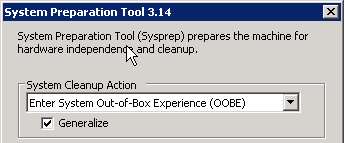
  • After sysprep reboots the system, you will have to go through the initial out-of-box setup again. Reconfigure networking as appropriate and join the clone to your domain.
  • Once this is done, all you have to do to add the clone to the existing federation server farm. This is where I ran into a problem though, and ultimately why I’m posting this info.

    On the clone (let’s call it ADFS2 to make things simpler), the “AD FS 2.0 Windows Service” started but trying to access the federation metadata via https://servername/federationmetadata/2007-06/federationmetadata.xml resulted in a “503 Service Unavailable” error. Checking the AD FS 2.0 Log turned up five errors, all of which referenced issues with the certificates used for ADFS signing.

    “During processing of the Federation Service configuration, the element ‘serviceIdentityToken’ was found to have invalid data. The private key for the certificate that was configured could not be accessed. The following are the values of the certificate:”

    Each error showed a different element but was otherwise the same. In all cases, the errors pointed towards an issue with the ADFS service account being unable to access the private keys for the certificates.

    This is where things get a little complicated. ADFS relies on three certificates to make everything work. I’ve redacted a lot in the screenshot below, but you can see the three certificates. During a standard ADFS install, the “Service communications” certificate should be a 3rd party certificate that’s trusted (Verisign, etc.) but the Token-decrypting and Token-signing certificates are typically self-signed.
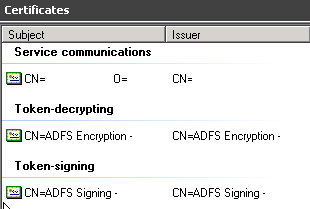
    The “Service communications” certificate, being a public cert, is the easiest to address. Open the certificates MMC snap-in and connect to the ADFS computer’s certificate store. Your service certificate should be in the Personal folder. If you right-click the certificate, then select “All Tasks” and then “Manage Private Keys…” you can verify that your ADFS service account has read permission on the private key. In my case, the account appeared to have permission though as it turns out, it did not.
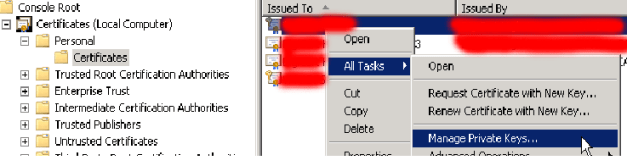
    In the process of troubleshooting, I deleted the certificate from ADFS2. I then exported it from ADFS1, including the private key, and re-imported it to ADFS2. Once I did that and checked permissions on the private key (on ADFS2), I ran into something strange…the ADFS service account was missing, and in its place was an unresolvable GUID. I deleted the GUID and re-added the ADFS service account. I restarted the AD FS 2.0 service, and found that the first error pertaining to the serviceIdentity token was gone, but the others were still present.

    It took me a while to find the other two certificates. They’re actually in the personal certificate store for your ADFS service user, so you’ll need to log on to the server with your service user’s credentials to access them. Unfortunately, while the certificates console shows a valid private key for both certs, you cannot export that key, nor can you “Manage” it as per above to review or change the permissions.

    The final solution actually turned out to be pretty simple. I deleted both certs entirely on ADFS2, then re-ran the ADFS wizard and re-added ADFS2 to the ADFS farm. Doing so recreated the certificates and set whatever permissions were necessary. Problem solved.

    Long story short…if I were to do this again, I would delete all three certificates from the cloned system before running the ADFS wizard. I’m not sure if you would still need to manually reset the permissions on the private key for the Service communications certificate, but I’m inclined to think not.

    Keep in mind even after adding the additional ADFS server you need to sort out load-balancing so both servers can be used for authentication requests.

    Bonus Tip: If during testing you notice that Chrome, Firefox, or any other non-IE browser repeatedly prompts for credentials, that’s normal. By default the ADFS install will have IWA with Extended Protection enabled, which only works for Internet Explorer. If you need to disable this to support other browsers, you can.
The Myth of the Low-Cost Windows Alternative

Posted by James F. Prudente on June 12, 2014
Posted in: Opinion, Uncategorized. Leave a comment

In my position, rarely does a day go by without some vendor hawking the latest non-Microsoft device that will solve all of our computing problems. Whether they are iPads, Chromebooks, Kindles, or Android-based, they all share one thing in common: none of them run Windows. These vendors (Apple excluded) almost always share the same pitch as well, focusing on how much lower their per-device cost is versus an equivalent Windows device, and how that lower purchase price will allow us to put more technology in the hands of students.

Obviously it doesn’t take any technical knowledge to recognize one can purchase more $199 Kindles than $499 Windows tablets given a fixed amount of dollars, but to only consider the capital expenditure is a mistake. The reality is that for an organization that already supports Windows (i.e. everyone), bringing in a new non-Windows platform will substantially add to support costs and other operational expenses. There are also significant issues surrounding device limitations and user experience that must also be considered.

Now before I go any further, let me own up to the fact that yes, I’m a strong Microsoft proponent. Detractors would probably consider me a “fanboi,” but I speak from experience, not blind devotion. I’ve used many of the other platforms out there. I’ve supported OSX, installed and run Linux on the desktop, currently manage a number of Linux servers, own two iPads, and heck, I even ran OS/2 Warp and was anti-Microsoft for a while. I have no problem calling out Microsoft when they do something stupid, but the reality is Windows can do pretty much anything you need it to, and generally does it pretty well.

Back to the topic at hand, it’s difficult to explain the hidden costs of ‘cheap’ devices to non-technical people because they typically don’t even recognize all of the behind-the-scenes work that goes into keeping an environment running smoothly. Whether Microsoft or not, things like user authentication, device lockdown policies, OS and software deployment, anti-virus, content filter integration, and many other systems are absolutely essential yet completely invisible to end-users. A new platform means new ways are needed to satisfy these needs, and often means purchasing new software solutions to do so.

The irony is the better job an organization does supporting Windows, the higher the incremental cost of introducing a non-Windows platform. Why? Consider software installation: if you’re still (shudder!) doing this manually, it doesn’t make a huge difference if you’re doing so on a Windows PC or an Android tablet. But if you’ve automated the process using a deployment solution, you lose all of that efficiency when working on another platform. Similarly, if you don’t lock down your Windows PCs then you may not care about doing so on other devices, but if you currently use group policy to control what users can and cannot do, losing that functionality may be unacceptable and having to learn a new system to replicate it takes a lot of time.

And time, as they say, is money. Or more specifically staff. IT departments are continually asked to do more with fewer people, and it’s precisely the efficiency gained through automated processes that allow many IT departments to survive with skeleton staffs. Any organization that introduces a new non-Windows platform needs to be willing to hire additional staff to support it. That’s irrespective of the quantity of devices purchased; it’s simply the addition of a new platform that triggers the additional workload, NOT the volume of those new devices. Good IT departments design systems to scale, so adding more of the same devices is a relatively trivial task, while adding even a small number of new devices is far more complicated.

There is also often a steep user learning curve when new platforms are introduced. Even someone who may be familiar with using an iPad (for example) is going to have to learn how that device integrates with the organization’s network, how authentication to network resources is handled, how (or if) web content is filtered, how common file formats are (or are not) read, etc. This all results in lost productivity, further eroding the theoretical “savings” of these low-cost devices.

Finally, the dramatic loss of flexibility compared to a Windows device cannot be ignored either. Any non-Windows device is only going to be able to offer a subset of the functionality of a Windows PC. That may be fine if all one cares about is browsing the web, but inevitably once a device is purchased, the end-user or organization wants to do more with it. “We just want to do x” with a device turns into “well, we want to do y as well” and then “what do you mean we can’t do z?” For instance, we have a heavily used web-based system of which 90% will run fine on an iPad, but that last 10% requires Java. If the user doesn’t care about that last 10% the iPad is perfectly fine, but once they do, you have an expensive paperweight because it simply cannot run the full application. I’ve seen this scenario manifest itself time and time again. Sacrificing flexibility at the altar of cost savings is fine right up until you need your cheap device to do something it can’t.

In “Economics in One Lesson,” famed economist Henry Hazlitt speaks to the difficulties in measuring or recognizing unseen costs. It is far easier to see a bridge being built, he says, than to appreciate the things that didn’t happen because money was taken to build that bridge. In the same fashion, it is far easier to see how many more devices can be purchased by going with a low-cost alternative than to recognize the inevitable increase in operational expenses and lost productivity that results from introducing a new, non-Windows platform. Once one factors in those additional costs it becomes apparent that while low-cost non-Windows devices may seem like a bargain, they simply trade one set of expenses for another, and sacrifice flexibility in the process.

Save the Kindle for reading romance novels and the iPad for playing Angry Birds; love it or hate it, Windows remains the best and most economical choice for getting actual work done.

vSphere 5.1 Networking

Posted by James F. Prudente on May 29, 2014
Posted in: vmware. Tagged: esxi, vmotion, vmware, vsphere. Leave a comment

We have a vSphere 5.1 cluster to which I was recently adding another host. After bringing the host online I started noticing some issues which led me to double-check my entire configuration. In the process I discovered some interesting facts about NIC teaming in vSphere that were news not only to me but also to some other admins I spoke to, and thus this blog post was born.

Fair warning: I am not a vSphere expert and there are far better resources with which you can learn about vSphere networking in general; I’m only going to touch on a few less-obvious items and enough ancillary material for everything to hopefully make sense.

NIC Teaming

To quote vmware themselves (ugh, the inconsistently in capitalization is so annoying), “when two or more [physical NICs] are attached to a single standard [vSwitch], they are transparently teamed.” (Page 15) What’s confusing though is in some cases, teaming isn’t really what you want and additional manual configuration is required. Read on…

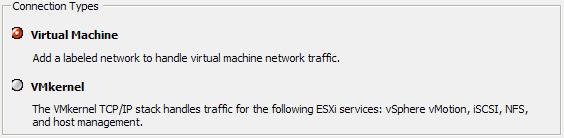
When you add a network connection to a vSphere host, there are two options: Virtual Machine or VMKernel.

The best way to configure Virtual Machine networking is going to vary quite a lot from environment to environment, so instead I want to focus on the VMkernel stack. As the GUI shows, VMKernel is actually the parent connection type for vMotion, iSCSI, NFS, and host management. I have no experience with vSphere NFS so enough said on that topic.

Ignoring NFS gives us three VMkernel services for which we typically need to address networking: vMotion, iSCSI, and host management. Based on the various links below and other research I’ve done, it seems the most straight-forward way to set this up is with a separate vSwitch for each, assuming you have enough physical NICs to provide redundancy for each
vSwitch. This means you need at least six physical NICs in addition to those used for Virtual Machine networking.

Let’s look at each service one by one:

Host Management

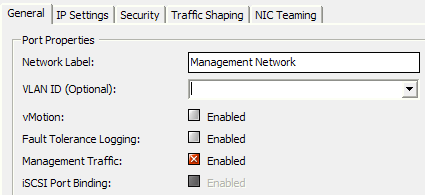
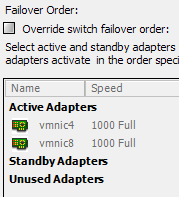
Your host management vSwitch needs a single VMkernel port, with vMotion disabled and Management Traffic enabled. The default NIC Teaming policy should be in effect (i.e. “override switch failover order” should be disabled) and all adapters are “active.” This is the easy service as there really isn’t any special configuration required.


vMotion

What’s surprising here is that despite multiple NICs being transparently teamed, there is a specific configuration necessary to realize a performance benefit from multiple NICs. I’m not going to rehash content that others have already written, so check out Duncan Epping’s post here, which led to a vmware KB article explaining this process. In short, you need multiple VMkernel’s, setup so that each uses a separate active NIC. This allows vSphere to use multiple NICs for vMotion.

iSCSI

This is a similar situation to vMotion in that an explicit configuration is required to realize the benefits of multiple NICs. In this case, you’ll need to setup multipathing with port binding even if you’re using a single storage array and all your iSCSI traffic goes through a single switch.

Start with vmware’s “Considerations for using software iSCSI port binding in ESX/ESXi” to figure out if you should be using port binding and if your network configuration supports it. “Multipathing Configuration for Software iSCSI Using Port Binding” is then the actual configuration guide. Both links are reasonably concise and easy to follow.

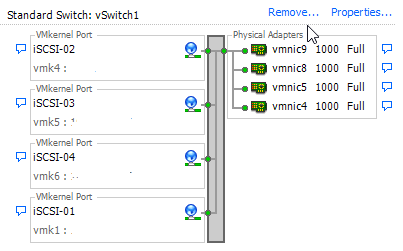
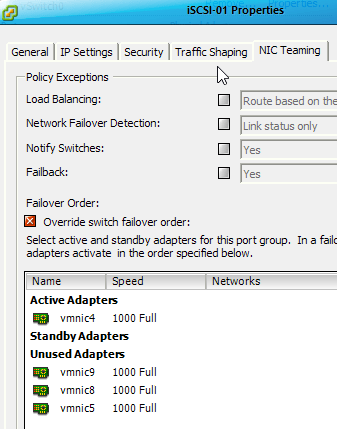
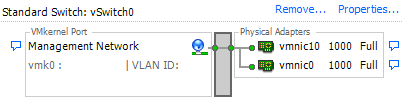
Essentially you will need a VMkernel port for each NIC, with its own IP address that resides in the same broadcast domain as the other NICs. Each VMkernel port should have only one active NIC (but a different active one from the other ports) with the remaining NICs being unused.

Below, note how each VMKernel port has a different active NIC, and the others are unused. (I’m only showing two of the four I have configured, but you get the idea.)

In Summary

One of the nice things about vSphere networking is the basic setup is pretty easy, and things will work reasonably well. It does take a little extra one-time effort to implement the setup above, but the performance and reliability improvements are worthwhile.

Thanks for reading!

ADFS Authentication Failures on Domain-Joined PCs when Running off Domain

Posted by James F. Prudente on May 6, 2014
Posted in: Office 365, Permissions, Windows 8.1, Windows Server. 1 Comment

If you’re going to be using Office 365 in any capacity, you essentially need to setup Active Directory Federation Services (ADFS). This will sync your on-premise AD to Microsoft’s cloud and allow your users to sign-on to Office 365 using their domain credentials. I did most of this setup using ADFS 2.0 on Windows Server 2008 R2 about a year ago when we first starting using some O365 features and thought everything was working fine. Of course if it was, this post wouldn’t exist.

For the 2008 R2 variant of ADFS (there’s a newer version on Server 2012), Microsoft recommends five (5!) servers: one to sync your AD to the cloud, two load-balanced as the actual ADFS servers to authenticate users, and two more (also load-balanced) as ADFS proxies, which would typically sit in your DMZ and relay authentication requests to your ADFS server(s).

NOTE: A Microsoft Office 365 expert I saw speak at a recent presentation indicated that installing the DirSync tool on a domain controller is now supported, so that would at least eliminate one of the five servers mentioned above. I haven’t verified that elsewhere, and I’m not sure if it’s only applicable to ADFS on Server 2012, but it’s worth looking into if you’re doing a setup from scratch.

I balked at installing five servers, especially as we were (and for the most part, still are) in a testing phase with Office 365. I setup the AD sync server and one ADFS server and started testing. After the usual teething issues, everything looked good and users could authenticate to Office 365 using single-sign-on (SSO) from behind the corporate firewall. That left dealing with users outside the firewall. Basically you can handle this one of two ways; either install the ADFS proxy server(s) as per Microsoft, or expose port 443 on the ADFS server to the Internet. The later choice is considered slightly riskier from a security perspective, but unless you’re going to put the proxy server(s) in a DMZ, there’s really no (security) difference that I can see. I went with the easier approach, which as it turns out was a mistake.

After opening port 443, I tested ADFS from a non-domain joined PC outside our firewall. As expected, I was prompted for credentials and was able to login successfully. I also tested using my domain-joined laptop (running Win 7) from home, and was likewise able to login. So everything was good as far as we knew.

Until we started testing Windows 8.1, that is. I noticed pretty quickly that the domain-joined 8.1 machines could not connect to O365 when running off-domain. So for example, a user with a domain-joined tablet could not connect when using that tablet from home, yet back in the office everything worked fine. A non-domain joined Windows 8/8.1 system would however prompt for credentials and allow the user to login.

At this point I re-tested this same scenario on Windows 7 and found that most of the time, the Win 7 client could connect from outside the domain. Sometimes though I would repeatedly be prompted for credentials and could not connect. Inconsistent behavior. Lovely.

I opened a ticket with Microsoft, who, to their credit, provides free support for O365 on top of providing O365 itself for free to K-12 schools. It took a while, but the ADFS team I was working with eventually established that ADFS was working properly and that Kerberos authentication was failing. Of course troubleshooting that would require involving the directory services team, so I’d need to open a new ticket with them. Sigh.

Before I go any further, let me summarize the behavior I was seeing:

OS

Domain-Joined

Connected From

Behavior

Windows 7

Yes

Behind Firewall

Login worked via SSO

Windows 7

No

Outside Firewall

Login worked after prompting for credentials

Windows 7

Yes

Outside Firewall

Inconsistent; login worked when the system did not prompt for credentials, but failed when it did prompt

Windows 8.1

Yes

Behind Firewall

Login worked via SSO

Windows 8.1

No

Outside Firewall

Login worked after prompting for credentials

Windows 8.1

Yes

Outside Firewall

Login failed, never prompting for credentials


Incidentally, a login failure showed in the browser as “page could not be displayed,” but was actually a “401 Unauthorized” reply from the ADFS server.

Having now been pointed in the direction of Kerberos, I decided to do some more troubleshooting before opening a ticket with the directory services team. I stumbled on this KB article, which came pretty close to describing the problem we were experiencing. Unfortunately I went through that entire article and none of the resolutions shown had any effect.

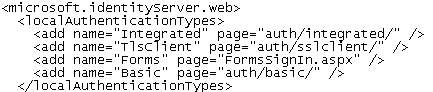
That KB article did at least force me to look at web.config and the different types of authentication that ADFS supported.

I knew “Integrated” authentication was working fine behind the firewall, using Kerberos. And likewise I knew “forms”-based authentication worked from outside the firewall. Now, in theory, the client should be trying these authentication methods in order, negotiating the most secure one available to both the server and the client. And that seems to be the cause of the problem.

Now, I’ll freely admit that Kerberos and negotiating authentication methods is not one of my areas of expertise, but a packet-trace showed a clear problem. The 8.1 client was attempting to contact a domain controller from outside the firewall, to find a Kerberos SRV record; obviously there’s no way that would work. So my best guess is this: when joined to the domain, the client believes it can/should be able to authenticate with Kerberos; this prevents the negotiation of the authentication method from “falling-back” to forms-based. But without connectivity to a domain controller, Kerberos authentication fails, at least most of the time. I can’t explain the inconsistent behavior on the Win 7 systems, other than guessing that I was switching a test machine from my domain network to my off-domain network so quickly that the client didn’t need to request another Kerberos ticket.

So after all this, I ended up coming full circle to the ADFS proxy server I chose not to install initially. Apparently while you don’t need an ADFS proxy for most functionality, getting things working 100% does require one. After installing the proxy and making the necessary firewall changes, all of our problems went away. (See this link for a quick rundown on installing and configuring an ADFS proxy. Keep in mind there is a newer update rollup than the article references.)

The reason for this is simple: the ADFS proxy is only setup for forms-based authentication. Using split-brain DNS, an internal client connects to your ADFS server and authenticates with Kerberos, but an external client connects to the ADFS proxy and is (always) prompted for credentials via forms-based authentication.

In retrospect I should have just followed Microsoft’s recommendations and installed the proxy from the beginning. Unlike the ADFS setup itself – which is quite time consuming – installing and configuring the proxy is quick and easy. It’s just another server to manage. But then again, what would modern IT be without virtual server sprawl?

With that, another obscure problem comes to a resolution. If this helps you please leave a comment; I love getting feedback.

Bonus Info: If you want to customize the ADFS proxy login page to make it look better, check out this page.

I also recommend making the changes shown at the bottom of this page to FormsSignIn.aspx.cs so that the username field automatically gets populated.

Finally, after making the changes above, you can make one more change to FormsSignIn.aspx.cs so that the focus is set to the password field. Find UsernameTextBox.Text = userName; in FormsSignIn.aspx.cs and add PasswordTextBox.Focus(); right below it.

With those changes made, you’ll have a much better looking login page that will automatically populate the username field and set the focus to the password field. Not bad for a few minutes work.

[PublicFolderDatabase] is pointing to the Deleted Objects container in AD

Posted by James F. Prudente on April 16, 2014
Posted in: Exchange. 4 Comments

After installing Exchange 2013 SP1, I began reviewing the server’s Application log for errors or warnings. There were a large number of Event ID 2937, from MSExchange ADAccess, and while the exact error text varied a bit from event to event, they all indicated that an Exchange property was pointing to a deleted object in AD. The process itself can vary, as can the property in question. In our case it was [PublicFolderDatabase] as shown below.

While researching the issue I was able to find a bit more information about properties other than [PublicFolderDatabase]; in some cases this error seems to indicate missing or bad data that must be corrected for Exchange to function properly. Our specific error wasn’t causing any operational problems but it was littering the Application log.

What I found strange after doing some research was that the PublicFolderDatabase property is deprecated in Exchange 2013 and thus shouldn’t be causing a problem. Nonetheless, the data was still there and I needed to remove it. Unfortunately with the property deprecated, Set-MailboxDatabase could not be used to set PublicFolderDatabase to $null; attempting to do so resulted in “Cannot validate argument on parameter ‘PublicFolderDatabase’. The argument is null or empty…”

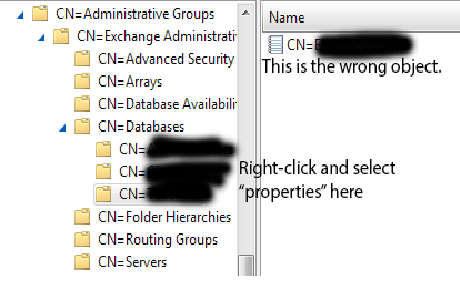
The other info I could find out there called for using ADSI Edit to remove the property, but try as I might I couldn’t find the PublicFolderDatabase property where the App log said it should be. Finally I stumbled on this post which, while not pertaining specifically to Exchange 2013 identified the actual attribute name as “msExchHomePublicMDB”. I still couldn’t find it though until I read this comment, which explained the problem: I had been viewing the properties of the “notebook” object, rather than the “folder” object. (See screenshot below)

Once I opened the properties of the folder object, sure enough I found “msExchHomePublicMDB” and was able to clear it out. Once replication occurred, the errors stopped. Simple fix once you know where to look.


Posts navigation

← Older Entries
Newer Entries →
  • Recent Posts

    • Silent Installs of Adobe Acrobat Fail Successfully via the Creative Cloud Installer
    • Nested Groups in Azure AD and Exchange 365
    • MDT/ADK Issues – Path Not Found
    • The Real-World Implications of PrintNightmare
    • Office 365 Folder Naming Conflict
  • Recent Comments

    Brian's avatarBrian on Managing Mail-Enabled Security…
    Sunny Nijjar's avatarSunny Nijjar on Silent Installs of Adobe Acrob…
    James F. Prudente's avatarJames F. Prudente on BGInfo for Windows 10
    Andrewloh's avatarAndrewloh on BGInfo for Windows 10
    James F. Prudente's avatarJames F. Prudente on Nested Groups in Azure AD and…
  • Archives

    • August 2023
    • May 2023
    • October 2022
    • August 2021
    • July 2021
    • December 2019
    • November 2018
    • September 2018
    • June 2018
    • November 2017
    • October 2017
    • March 2017
    • October 2016
    • September 2016
    • July 2016
    • June 2016
    • April 2016
    • February 2016
    • December 2015
    • September 2015
    • July 2015
    • April 2015
    • March 2015
    • February 2015
    • January 2015
    • November 2014
    • October 2014
    • September 2014
    • July 2014
    • June 2014
    • May 2014
    • April 2014
    • March 2014
    • February 2014
  • Categories

    • Active Directory
    • ADFS
    • ASA
    • C#
    • Chrome
    • Cisco
    • Deployment
    • Exchange
    • Group Policy
    • Office 365
    • Opinion
    • PaperCut
    • Permissions
    • PKI
    • PowerShell
    • Scripting
    • Uncategorized
    • vmware
    • Web Filtering
    • Windows 10
    • Windows 11
    • Windows 8.1
    • Windows Server
    • Wireless
  • Meta

    • Create account
    • Log in
    • Entries feed
    • Comments feed
    • WordPress.com
Blog at WordPress.com.
Trials of a Network Admin
Blog at WordPress.com.
  • Subscribe Subscribed
    • Trials of a Network Admin
    • Join 33 other subscribers
    • Already have a WordPress.com account? Log in now.
    • Trials of a Network Admin
    • Subscribe Subscribed
    • Sign up
    • Log in
    • Report this content
    • View site in Reader
    • Manage subscriptions
    • Collapse this bar
 

Loading Comments...