Trials of a Network Admin

Fixing problems nobody else seems to have.

  • About

Automating Office 365 Licensing for New Users

Posted by James F. Prudente on November 3, 2014
Posted in: Active Directory, Office 365, Scripting. Tagged: Office365, PowerShell, scripting. 4 Comments

One of the frustrations we’ve found with Office 365 is provisioning new AD users becomes a multi-step process:

  • Add user to AD
  • Wait for DirSync to sync the new user to Office 365
  • Log in to O365, license new user as needed

In an environment where new users are infrequent this would be fine, but we’re K-12; students move into the district pretty regularly, so we’re always adding new users. And to complicate matters, the people creating these new users are outside of IT, thus they neither have permissions to administer O365 nor would they necessarily be able to do so reliably if they were given permission.

I wanted to automate this process as much as possible. You can administer Office 365 with PowerShell, so that’s the obvious (and AFAIK only) approach.

Before we get into the meat of this task, please review my post about how to determine what licenses are available to you, as you’ll need this info to modify the sample script I’ll provide later on.

We’re ultimately going to create a scheduled task to run a PowerShell script, so start by determining what server you want to run the task on. You’ll need to install:

  • Azure AD PowerShell Module, which has a few prerequisites of its own, shown at that link.
  • PowerShell 4.0

Note that I setup this task on the same server I’m using for DirSync, so it’s possible there are other required components that were already present on my system.

To automate this process we’re going to need to store credentials that can administer Office 365. The easiest way I found to do this is from this blog post at BSonPoSH. The important thing here is you must log on to the server and run the below code with whatever account you intend to use to run the scheduled task. That’s because the credentials file created can only be decrypted by the user who created it. Update the path shown below if you need to.

$Credential = Get-Credential
$credential.Password | ConvertFrom-SecureString | Set-Content "C:\Program Files (x86)\LicenseO365\cred.txt"

When you run this you’ll be prompted to enter credentials that can administer your Office 365 tenant.

Here’s the actual licensing script; I’ll comment on it below.

# LicenseStudentsForO36SchedTask.ps1
# 
# Task to automatically license newly added domain users
#
# Copyright 2014, James F. Prudente, except for code sections attributed to others.
# Free to use and distribute in its entirety. Please do not remove attributions.
# Use at your own risk!

# Taken from http://www.methos-it.com/en/blog/powershell-function-to-check-for-a-loaded-module
function Check-LoadedModule
{
  Param( [parameter(Mandatory = $true)][alias("Module")][string]$ModuleName)
  $LoadedModules = Get-Module | Select Name
  if (!$LoadedModules -like "*$ModuleName*") {Import-Module -Name $ModuleName}
}

# Path to log file location
$basepath = "c:\program files (x86)\LicenseO365\"

# Log file with current date and time
$logfile = $basepath + "NewUsers_" + (Get-Date).tostring("MM-dd-yyyy-hh-mm-ss") + ".log"

# Set to $true if you want to create e-mail addresses for new users
$enableEMail = $false

# The domain suffix for your new users
$domainSuffix = "domain.suffix"

# This is a temp file, no need to change anything here
$outputCSV = $basepath + "export.csv"

$text = "Beginning script execution: " + (Get-Date).tostring("MM-dd-yyyy-hh-mm-ss")
Write-Output $text > $logfile

# Uncomment the below if you want to be prompted for credentials
# $cred = Get-Credential

# Comment the below if you uncomment the above
# Read credentials from file
# Adapted from http://bsonposh.com/archives/338
$File = $basepath + "cred.txt"
$password = Get-Content $File | ConvertTo-SecureString
$cred = New-Object System.Management.Automation.PSCredential("username of your O365 admin whose credentials are stored",$password)
# End of reading credentials from file

# Make sure the Azure PS module is loaded
Check-LoadedModule MSOnline

# Connect to Azure
Connect-MsolService -Credential $cred
$s = New-PSSession -ConfigurationName Microsoft.Exchange -ConnectionUri https://ps.outlook.com/powershell -Credential $cred -Authentication Basic -AllowRedirection
$importresults = Import-PSSession $s -AllowClobber

# You’ll need to adjust the Where-Object clause below to suit your purposes
Get-msoluser -all -unlicensedusersonly | Where-Object { $_.userPrincipalName.Split("@")[1] -eq $domainSuffix } | select UserPrincipalName | Export-Csv $outputCSV -NoTypeInformation

$unlicUsers = Import-Csv $outputCSV

If ( $enableEMail )
{
    $licOptions = New-MsolLicenseOptions -AccountSkuId tenant:STANDARDWOFFPACK_STUDENT -DisabledPlans MCOSTANDARD
}
Else
{
    $licOptions = New-MsolLicenseOptions -AccountSkuId tenant:STANDARDWOFFPACK_STUDENT -DisabledPlans MCOSTANDARD,EXCHANGE_S_STANDARD
}

$count = 0
Foreach($user in $unlicUsers)
{
    $count++
    $upn = $user.UserPrincipalName
    Set-MsolUser -UserPrincipalName $upn -UsageLocation US
    Set-MsolUserLicense -UserPrincipalName $upn -AddLicenses tenant:STANDARDWOFFPACK_STUDENT -LicenseOptions $licOptions
    Set-MsolUserLicense -UserPrincipalName $upn -AddLicenses tenant:OFFICESUBSCRIPTION_STUDENT
    If ( $enableEMail )
    {
        Do
        { 
            Start-Sleep -Seconds 15
        }
        Until (Get-Mailbox -Identity $upn)
        Set-Mailbox -Identity $upn -WindowsEmailAddress $upn
    }
    $text = "Account created for " + $upn
    Write-Output $text >> $logfile
}
$text = "`nA total of " + $count + " users were created."
Write-Output $text >> $logfile

Remove-PSSession $s

$text = "Ending script execution: " + (Get-Date).tostring("MM-dd-yyyy-hh-mm-ss")
Write-Output $text >> $logfile 

You’ll need to change a few things to fit your environment:

  • Set $basepath to the directory from which you’re executing the script, which must contain your cred.txt file created earlier.
  • In the line beginning with $cred, you’ll need to enter the username of the O365 administrator whose credentials you stored earlier in cred.txt.
  • Set $enableEMail to $true if you want e-mail accounts created for newly licensed users.
  • Substitute your actual tenant name anywhere you see “tenant” in the script.
  • Adjust the various $licOptions and Set-MsolUserLicense lines as needed. My previously linked blog post should help in sorting this out.
  • The most complicated part is probably adjusting the Where-Object clause to retrieve only the specific users you want to focus on. This is going to depend on your specific setup. We are using a different UPN suffix for our students, so this is relatively easy in our case.

So what’s the script actually doing?

  • First, we retrieve the credentials stored previously in cred.txt.
  • Then we check if the AD PowerShell module is loaded, and load it if it’s not.
  • Next, we connect to Azure.
  • We then export a list of unlicensed users meeting our criteria to a temp file.
  • That temp file is then read back in, and each user in the file is licensed according to the parameters set.
  • All output is logged to a dated log file. (You’ll want to manually clean these up periodically as the script doesn’t provide for this.)

You can run this script interactively to make sure everything is working. Once you’re comfortable that it is, setup a scheduled task to execute the script. The program executed should be powershell.exe at the path shown below. The argument should be the script itself, preceded by a “.\” – without this things will not work. Don’t ask why. Set the script’s directory in the “Start in” field.
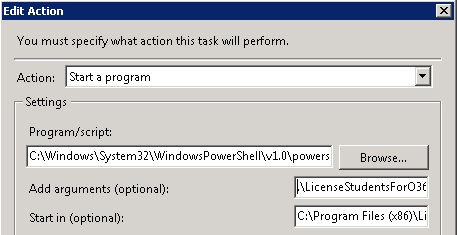
You can set the trigger to whatever you like, depending on when and how often you want this to run. The other critical piece is to run the task as the AD user under which you created the original cred.txt file. You may also need to check “Run with highest privileges.”

Since the user situation is a little confusing let me attempt to clarify it:

  • You need to create the cred.txt file as a valid AD user, and then subsequently run the task as the same user.
  • The credentials entered when you create cred.txt need to be an O365 admin account, and the username for that account needs to be entered into the script itself.

If your O365 account admin’s password expires, you’ll have to update cred.txt to reflect the new password. I don’t see a way around this short of using an AD-synced account with password expiration disabled.

That should do it! This definitely requires a bit of work upfront but should making keeping up with new users much easier. If you find this useful or have any questions, please let me know.
Fixing Missing Address Book Entries in O365

Posted by James F. Prudente on October 6, 2014
Posted in: Active Directory, Exchange, Office 365, Windows Server. Tagged: ADFS, Adress Book, Exchange, Office365. Leave a comment

Recently I’ve been working to get a full O365 implementation setup to roll-out to our students, and while we’re not doing student e-mail just yet, I wanted to make sure everything is working so when we are ready, we just have to add the Exchange licenses. One of the quirks I ran into is a few users were not listed in the Office 365 address book. We do not have a hybrid Exchange deployment, but because our AD is sync’d to O365, we should have a full GAL in the cloud accessible to be searched by any Office 365 user.

After going through the usual online search and not turning up anything too helpful, I decided to compare O365 data for two users: one who was showing up in the GAL, and another that was not. I piped the output from Get-MSOLUser to a separate text file for each user, then used WinMerge to compare them.

Get-MSOLUser –UserPrincipalName UPN1 | fl > user1.txt

Get-MSOLUser –UserPrincipalName UPN2 | fl > user2.txt

The one attribute that stood out as different was CloudExchangeRecipientDisplayType, which was set to “-2147483642” for the user that was in the GAL, and “1073741824” for the user that was not. I started researching that attribute and found this very helpful post. The poster of that Article, Declan Conroy, was trying to trick O365 in such a way as to facilitate an easier migration from on-premise Exchange to the cloud. It wasn’t an exact fit for my situation, but it did make clear that “CloudExchangeRecipientDisplayType is not available as an attribute in AD, [but] is exported…with the value from the incoming msExchRecipientDisplayType attribute.”

That led me to look for more info on msExchRecipientDisplayType, and I found this page listing the meaning of the various values for both that attribute and msExchRecipientTypeDetails.

At this point it still wasn’t clear to me if the discrepancy in CloudExchangeRecipientDisplayType was causing the missing GAL entry, and because the only way to change that attribute in the cloud was to change msExchangeRecipientDisplayType in my local AD, I wanted to investigate more.

I decided to search for other users with 1073741824 as their CloudExchangeRecipientDisplayType:

    Get-MSOLUser | Where-Object {$_.CloudExchangeRecipientDisplayType -eq 1073741824}

The results from this search seem to confirm that this is the expected value for users who do not have on-premise mailboxes.

Some more digging turned up another disparity between accounts in the GAL and those that were not. I ran this command:

    Get-User –Identity displayname | select RecipientType, RecipientTypeDetails

I found three distinct results:

RecipientType


User

These recipients were not in the GAL

MailUser

User with on-premise mailbox, in GAL

UserMailbox

User with O365 mailbox, in GAL


This provided further evidence that the incorrect CloudExchangeRecipientDisplayType, which was controlled by the on-premise msExchRecipientDisplayType attribute, was the source of the problem. So now to fix it…fortunately I had already found the answer in a post I linked earlier.

Using the attribute editor in Active Directory Users & Computers I made three changes to each affected AD account:

Attribute

Change To

msExchRecipientDisplayType

6

msExchRecipientTypeDetails

128

targetAddress

User’s e-mail address


Note that to access the attribute editor you must have advanced features enabled, and for some reason that tab does not show if you perform a search for the user. You’ll need to manually find them in AD and pull up their properties there instead.

You then need to perform a sync of your on-premise AD to the cloud. After doing so, RecipientType and RecipientTypeDetails both showed “MailUser,” and CloudExchangeRecipientDisplayType showed “-2147483642,” both of which were expected values for a working on-premise mailbox. A quick check of the address book showed the users were now listed in the O365 GAL.

You’re still not done though. If you leave the settings like this you will break your on-premise mailbox. (Why is it you only discover this stuff late on a Friday night, when you’re trying to relax?) You must change msExchRecipientDisplayType, msExchRecipientTypeDetails, and most importantly targetAddress back to their original values (1073741824, 1, and not set, respectively) in your on-premise AD. This will keep your mailbox working but the change to the cloud user type will remain. All set!

In speaking with a colleague recently I remarked that 90% of what you do in Office 365 is easy and works well, but the other 10% is a real source of pain. As we’ve seen here, much of that 10% comes from the fact that it’s not clear what many O365 attributes represent, and even when it is, those attributes are often not directly editable by administrators. Hopefully that situation will improve in time.

Configuring Office 365 for Students

Posted by James F. Prudente on September 30, 2014
Posted in: Office 365. Tagged: ADFS, Office365. 4 Comments

Microsoft offers certain K-12 school districts Office 365 licenses for students and faculty at no charge. This includes online versions of the Office suite, Exchange online, 1TB of OneDrive storage, SharePoint, Yammer and Lync. If one were starting from scratch you could pretty much use Office 365 for your entire storage and messaging infrastructure with no cost. Of course, most of us are not in that position and are already running some of these services on-premise, possibly with others in the cloud.

In our case, while we are using Office 365 for Yammer and as our back-end for Lync, we have Exchange on-premise for staff. We wanted to use Office 365 for student e-mail, but while we’re on Exchange 2013 and thus could support a hybrid deployment, we felt that was introducing unnecessary complexities. We also had no interest in touching our existing, fully-functional e-mail system.

We elected to purchase a new domain for our students, so the challenge became getting that domain up and running with our existing Office 365 setup, including ADSync and Single-Sign-On via ADFS. This post addresses how we went about doing so. It will be light in details in certain areas but hopefully help with the more complicated steps.

To start, you’ll need to purchase the new domain; we went with something that clearly identified these users as students. Once that’s done, add it to your Office 365 setup. You’ll need to have specific DNS entries added to validate your ownership of the domain, then setup the proper MX and related records.

Next, you will need to add a new UPN suffix (matching the new domain) to your on-premise Active Directory.

All users who will be using that new domain need to have their UPN suffix changed in your on-premise AD. This can be scripted through VBScript (which is what we used) or PowerShell.

Now you’ll need to re-sync your whole AD to the cloud so that the change to the UPNs take place, but there’s one important caveat: If your users already have a federated domain as their UPN, you cannot change their UPN directly from one federated domain to another federated domain. This isn’t clear from any documentation I could find, and the sync will complete successfully with the only indication of a problem being one warning, from FIMSynchronizationService, eventID 6105:

“The management agent “TargetWebService” step execution completed…but some objects had exported changes that were not confirmed on import.”

After a lot of unnecessary (and unproductive) troubleshooting, I stumbled on this post on the Office 365 community which points to the solution: change the UPN of any affected users back to the default “domain.onmicrosoft.com” suffix, sync your on-premise AD to the cloud, the change the UPN a second time to the new desired federated domain suffix, and finally sync one last time.

With that resolved, if you are using ADFS for SSO, you’ll need to update it to account for the new domain. A default installation of ADFS 2.0 does not support multiple top-level domains; you’ll receive the error “…federation service identifier specified…is already in use.” This can be fixed relatively easily by following MS KB #2618887. I was worried about this step but it took all of two minutes and did not cause any issues at all.

At this point, if everything is setup properly you should be able to use SSO to access Office 365 with valid credentials from any of your federated top-level domains. Now you’ll want to bulk license Office 365 users.

There are a few parts to bulk licensing. Before you can do any of this you need to connect to Office 365 using the Microsoft Online Services Module for PowerShell. Enter your administrator credentials for Office 365 when prompted.

$cred = Get-Credential            

Connect-MSOLService –Credential $cred

The first thing we need to do is set a location for our users. Note “US” must be capitalized, and obviously if you’re not in the US, you’ll need to substitute the proper country code. We’re only touching the unlicensed users here since you probably have users that are already setup, and the –All parameter is important so the results are not truncated.

Get-MsolUser -UnlicensedUsersOnly -All | Set-MsolUser -UsageLocation US

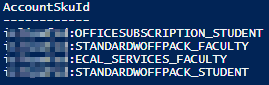
Now we need to figure out what licensing we want to assign. Your results may differ depending on what you may have purchased.

Get-MSOLAccountSku | select AccountSkuID


ECAL_SERVICES_FACULTY Exchange Archiving, Exchange Online Protection
OFFICESUBSCRIPTION_STUDENT Office Pro Plus Licensing for Students
STANDARDWOFFPACK_FACULTY Office 365 A2 License – Faculty
STANDARDWOFFPACK_FACULTY Office 365 A2 License – Students

This will list the different licensing packages available to you, but most likely you’ll want further detail. For each AccountSkuId shown you can run the below command to see the individual products and services. (Substitute whichever SKU you want for ‘STANDARDWOFFPACK_STUDENT’ below.)

Get-MsolAccountSku | Where-Object {$_.SkuPartNumber -eq ‘STANDARDWOFFPACK_STUDENT’} | ForEach-Object {$_.ServiceStatus}

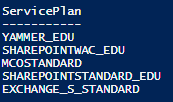
These are the specific products and services that can be licensed under the top level SKU.

EXCHANGE_S_STANDARD Exchange Online
MCOSTANDARD Lync
SHAREPOINTWAC_EDU
SHAREPOINTSTANDARD_EDU
SharePoint and OneDrive for Business (Must be licensed together.)
YAMMER_EDU Yammer (does not require explicit licensing)

If you want to selectively enable portions of the SKU, you need to license the SKU and disable the services you do not want. We do that by setting Licensing Options. In this example we are disabling Lync and Exchange. Note you’ll need to use the full AccountSkuId (including the prefix) in the command below.

$options = New-MSOLLicenseOptions -AccountSkuId organization:STANDARDWOFFPACK_STUDENT -DisabledPlans MCOSTANDARD,EXCHANGE_S_STANDARD

You then assign the license with Set-MSOLUserLicense, but to do this in bulk we have to first filter the users to whom we want to assign licenses. In this case we’re assigning student licenses to users with the student domain we setup earlier, then we will pipe that output to the Set-MSOLUserLicense command. Note “studentdomain” is the domain suffix you’ve setup explicitly for these users, and does NOT include the “@” symbol. (We’re splitting the UPN at the “@” and taking only the part to its right.)

    Get-MSOLUser -All -UnlicensedUsersOnly | Where-Object { $_.userPrincipalName.Split(“@”)[1] -eq “studentdomain” }

Incidentally if you want to get a count of those users, you can enclose the entire command in parenthesis and append .count to the end. i.e. (command).count

The above command will only show the impacted users. To actually assign licenses we need to pipe this output to Set-MSOLUserLicense as follows:

Get-MSOLUser -All -UnlicensedUsersOnly | Where-Object { $_.userPrincipalName.Split(“@”)[1] -eq “studentdomain” } | Set-MsolUserLicense -AddLicense organization:STANDARDWOFFPACK_STUDENT -LicenseOptions $options

You can repeat that command if you need to assign additional licenses (for instance, the Office subscription) but keep in mind you’ll have to remove –UnlicensedUsersOnly since these users are now licensed. We also found adding the second license generated a lot of errors about the license being invalid, but given enough time everything did completely successfully and all of our users were licensed properly.

The overall process is a little tedious, but when you consider what Microsoft is giving away for free, it’s well worth the trouble. Hopefully this posts makes things a bit easier.

Retrieving Extended AD Attributes in C#

Posted by James F. Prudente on July 9, 2014
Posted in: Active Directory, C#, Windows Server. Leave a comment

This certainly isn’t a programming blog and I’m certainly not a developer, but one thing I try to do here is publish info that took me a lot of time to figure out and that isn’t readily available elsewhere. And this certainly qualifies.

I’ve recently started learning C# in order to develop some custom utilities to help in my department’s day to day operations. One of these utilities required retrieving some attributes from a computer object in Active Directory. The ComputerPrincipal class gives us direct access to certain attributes, but a quick look at a computer’s AD object shows many more attributes that are not directly accessible via this class. Turns out there are ExtensionGet and ExtensionSet methods that will read (or write) to these extended attributes, but to make things complicated they are private methods and thus not directly accessible.

After some further research I found this link and realized I needed to derive a class from ComputerPrincipal so that I could expose the ExtensionGet and ExtensionSet methods. The code in that link provides an example of doing so, but it focuses on users, not computers, and furthermore it’s written in such a way that each extended attribute needs its own get and set methods. I wanted something less specific (so I could read or write to any extended attribute) and also needed to access computer AD objects.

It was easy enough to follow that post and derive a class (ComputerPrincipalEx) exposing the two otherwise private methods. The problem came in that I needed to make use of the FindByIdentity method in the base class and every attempt I made to do so resulted in the compiler throwing an error that it could not convert from type ComputerPrincipal to ComputerPrincipalEx. This made no sense to me so after not getting anywhere for a while, I posted this thread on StackOverflow, which unfortunately was not that useful. One poster there did mention however that I needed a static method that created a ComputerPrincipalEx from an instance of the base class. While trying to figure that out I reread the original link I posted, specifically this comment. Turns out I needed to create a new FindByIdentity method in my derived class that called FindByIdentityWithType in the base class. That would allow me – with the appropriate casts – to have a return type of ComputerPrincipalEx instead of ComputerPrincipal.

Even after doing that however, I was receiving an error that ComputerPrincipalEx was not a valid object type with which to search AD. After yet more research I discovered I needed to add two attributes to the code to specify the object type was “computer.”

The end result of all this is a working ComputerPrincipalEx class which can access the ExtensionGet and ExtensionSet methods.

Here’s the code…use at your own risk:

public class ComputerPrincipalEx : ComputerPrincipal
    {
        public ComputerPrincipalEx(PrincipalContext context) : base(context) { }

        public ComputerPrincipalEx(PrincipalContext context, string samAccountName, string password, bool enabled) : base(context, samAccountName, password, enabled) { }

        new public string ExtensionGet(string extendedattribute)
        {
            try
            {
                if (base.ExtensionGet(extendedattribute).Length != 1)
                {
                    return null;
                }
                else
                {
                    return (string)base.ExtensionGet(extendedattribute)[0];
                }
            }
            catch (Exception ex)
            {
                // This should be broken down to individual exceptions
                string message = string.Format("Exception occurred while retrieving extended attribute {0}. \r\nThe following error occurred:\r\n {1}", extendedattribute, ex);
                MessageBox.Show(message);
                Application.Exit();
                return null;
            }
        }

        public void ExtensionSet(string extendedattribute, string value)
        {
            try
            {               
                base.ExtensionSet(extendedattribute, value);
                base.Save();
            }
            catch (Exception ex)
            {
                // This should be broken down to individual exceptions
                string message = string.Format("Exception occurred while attempting to set extended attribute {0}. \r\nThe following error occurred:\r\n {1}", extendedattribute, ex);
                MessageBox.Show(message);
                Application.Exit();
                return;
            }
        }
       
        public static new ComputerPrincipalEx FindByIdentity(PrincipalContext ctx, string identityValue)
        {
            return (ComputerPrincipalEx)FindByIdentityWithType(ctx, typeof(ComputerPrincipalEx), identityValue);
        }
    }

If you find this useful or have any suggestions for improvements, please leave a comment. Thanks!

EdTech Magazine Article

Posted by James F. Prudente on July 7, 2014
Posted in: Opinion, Windows Server. Leave a comment

The current issue of EdTech magazine has an article for which I was interviewed, discussing the end of life of Windows Server 2003. I just want to take a moment to thank the author Leon Erlanger and his editor, Marla Clark. Both were very easy to work with and gave me plenty of opportunity to make sure what was published accurately reflected what I said. I’ve dealt with the media enough to know that’s not always the case.

Check out the article here.

Posts navigation

← Older Entries
Newer Entries →
  • Recent Posts

    • Silent Installs of Adobe Acrobat Fail Successfully via the Creative Cloud Installer
    • Nested Groups in Azure AD and Exchange 365
    • MDT/ADK Issues – Path Not Found
    • The Real-World Implications of PrintNightmare
    • Office 365 Folder Naming Conflict
  • Recent Comments

    Brian's avatarBrian on Managing Mail-Enabled Security…
    Sunny Nijjar's avatarSunny Nijjar on Silent Installs of Adobe Acrob…
    James F. Prudente's avatarJames F. Prudente on BGInfo for Windows 10
    Andrewloh's avatarAndrewloh on BGInfo for Windows 10
    James F. Prudente's avatarJames F. Prudente on Nested Groups in Azure AD and…
  • Archives

    • August 2023
    • May 2023
    • October 2022
    • August 2021
    • July 2021
    • December 2019
    • November 2018
    • September 2018
    • June 2018
    • November 2017
    • October 2017
    • March 2017
    • October 2016
    • September 2016
    • July 2016
    • June 2016
    • April 2016
    • February 2016
    • December 2015
    • September 2015
    • July 2015
    • April 2015
    • March 2015
    • February 2015
    • January 2015
    • November 2014
    • October 2014
    • September 2014
    • July 2014
    • June 2014
    • May 2014
    • April 2014
    • March 2014
    • February 2014
  • Categories

    • Active Directory
    • ADFS
    • ASA
    • C#
    • Chrome
    • Cisco
    • Deployment
    • Exchange
    • Group Policy
    • Office 365
    • Opinion
    • PaperCut
    • Permissions
    • PKI
    • PowerShell
    • Scripting
    • Uncategorized
    • vmware
    • Web Filtering
    • Windows 10
    • Windows 11
    • Windows 8.1
    • Windows Server
    • Wireless
  • Meta

    • Create account
    • Log in
    • Entries feed
    • Comments feed
    • WordPress.com
Blog at WordPress.com.
Trials of a Network Admin
Blog at WordPress.com.
  • Subscribe Subscribed
    • Trials of a Network Admin
    • Join 33 other subscribers
    • Already have a WordPress.com account? Log in now.
    • Trials of a Network Admin
    • Subscribe Subscribed
    • Sign up
    • Log in
    • Report this content
    • View site in Reader
    • Manage subscriptions
    • Collapse this bar
 

Loading Comments...